Claude Cowork: Multi-Step Task Execution
Explore how to use Claude Cowork to delegate and automate complex multi-step tasks by connecting to your local files and applications via Claude Desktop. Understand setting up workspace folders, creating context files, and guiding Cowork through planning, execution, and output of tasks. Learn to manage tasks interactively, leverage plugins and skills to extend functionality, and optimize workflows for report generation, file organization, and data analysis.
Claude.ai answers questions. Claude Desktop connects to your tools. Claude Cowork does the work. It is an autonomous agent that reads your files, plans multi-step tasks, executes them, and produces real outputs. Instead of asking Claude to explain how to create a summary report and then doing it yourself, you tell Cowork to create the report. It reads the data, decides how to structure the output, writes the document, and saves it. You steer the process, but Claude does the execution. This lesson covers how to set Cowork up, how it works, what it is good at, and how to guide it effectively.
What is Claude Cowork?
Cowork is a Claude product where Claude works directly with your files, folders, and applications. The core difference from Claude.ai chat is the relationship between you and Claude.
In a chat conversation, you and Claude exchange messages. You ask, Claude responds, you refine, Claude responds again. The output is the conversation itself, and anything Claude produces (an artifact, an analysis, a draft) exists within that conversation.
In Cowork, you assign a task. Claude plans how to accomplish it, breaks it into steps, executes each step, and delivers the result. You are not exchanging messages back and forth. You are delegating work and reviewing the output.

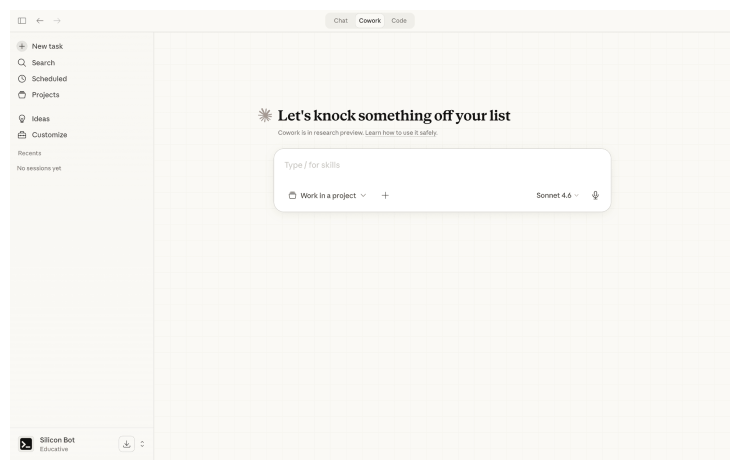
Think of the difference this way: Claude.ai chat is a conversation with a knowledgeable colleague. Cowork is handing a task to an assistant who goes away, does the work, and comes back with the result.
Setting up Cowork
Cowork is accessed through Claude Desktop. Download it from claude.ai/download if you have not already. You need a Pro plan or higher. The Desktop app must remain open for the duration of any task; closing it will interrupt execution in progress.
When you start Cowork, you select a folder on your computer. This is the workspace Cowork can access: the files it can read, the location where it saves outputs. Choosing the right folder and organizing it well makes a significant difference in output quality.
Folder architecture
Before your first real task, set up a simple folder structure. A pattern that works well:
The separation matters. Cowork reads from ABOUT ME, PROJECTS, and TEMPLATES for context. It writes to CLAUDE OUTPUTS. This keeps your source material untouched and Cowork’s deliverables organized.
Context files
The files in your workspace shape how Cowork writes and works. Two files are particularly useful to create before you start:
about-me.md: A markdown file describing who you are, what you do, your current priorities, and how you communicate. This is not Memory (which works in Claude.ai chat). Cowork reads files, so it needs this information in a file.
Example content:
writing-guide.md: A file that tells Cowork how to write. This is surprisingly effective. Instead of only describing what you want, you can also describe what you want to avoid: “Do not use phrases like ‘dive into,’ ‘leverage,’ or ‘at the end ...