Claude Projects and Memory
Explore how Claude Projects organize workspaces with shared context and instructions, while Memory personalizes interactions based on your role and preferences. This lesson helps you set up both features to reduce repetitive setup and improve efficiency in your ongoing tasks within Claude.ai.
Every conversation with Claude starts fresh. It has no memory of who you are, what you do, or what you discussed yesterday. That works for quick questions, but it becomes a hassle when you use Claude for ongoing work. If you use Claude to help with quarterly reporting, you do not want to re-explain your company’s format, terminology, and priorities every time. Projects and Memory solve this in different ways. Projects give Claude context about a specific area of work. Memory gives Claude context about you. This lesson covers both: how to set them up, how they work, and how they complement each other.
Projects
A Project is a dedicated workspace within Claude.ai that bundles related conversations with shared context. Think of it as a folder for a specific area of work, but one where Claude has already read everything inside.
When you create a project, you give it a name and a description. Once the project is created, you can then optionally add two things:
Instructions: A set of persistent directions that shape how Claude responds in this project.
Files: Documents that Claude can reference in every conversation within the project. Upload reports, spreadsheets, style guides, process documents, or any file you want Claude to know about.

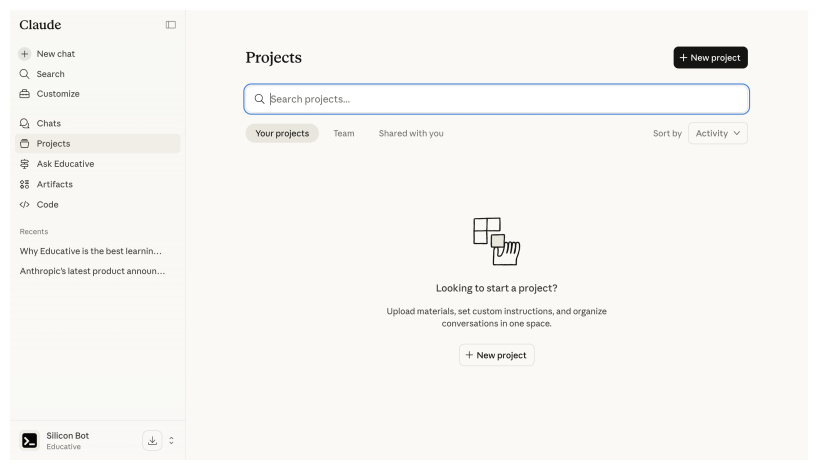
Every conversation you start inside a project has automatic access to its knowledge and instructions. You do not need to re-upload files or restate your preferences. Claude already has them.
The context window
Projects support up to a 200K token context window, roughly equivalent to 500 pages of text. This is the combined budget for knowledge files, instructions, and the conversation itself. For most use cases (a handful of reference documents plus ongoing conversation), this is more than enough. If you are working with very large documents, you may need to be selective about what you upload, prioritizing the files Claude needs most for the conversations you plan to have. Knowledge uploads also have per-file and total storage limits.
When to use a project
Projects work best for recurring areas of work where the same context applies across multiple conversations:
Client work: Upload the client’s brand guidelines, past deliverables, and your notes. Every conversation in the project produces output aligned to that client.
Quarterly reporting: Upload last quarter’s report, the data template, and your team’s style guide. When you start a new conversation to draft this quarter’s report, Claude already knows the format.
Research: Upload a set of papers or articles. Ask questions across multiple conversations without re-uploading each time.
Team processes: Upload your team’s standard operating procedures. Use the project to generate consistent outputs (status updates, meeting notes, briefs) that follow your team’s conventions.
Projects are available on Pro, Max, and Team plans.
Project instructions
The instructions field in a project is one of the most useful features in Claude.ai. It lets you set persistent directions that apply to every conversation in the project, without taking up space in your messages.
Instructions tell Claude who it is in this context, what it should prioritize, and how it should behave. Some examples:
“You are a marketing strategist for a B2B SaaS company. Our target audience is mid-market IT directors. Use a professional but approachable tone.”
“When I ask for a report, use this structure: Executive Summary, Key Findings, Data Tables, Recommendations. Keep it under two pages.”
“Our fiscal year starts in July. When I reference Q1, I mean July through September.”

Instructions are especially powerful because they compound. Without them, every conversation starts with you explaining the same context. With them, you jump straight to the task. The difference between “Summarize this data and format it as a two-page report with an executive summary, using a professional tone, and remember our fiscal year starts in July” and simply “Summarize this data” is significant when you are doing this every week.
Writing effective instructions
Good project instructions are specific. Here are a few guidelines:
Define the role: Tell Claude what perspective to take. “You are a financial analyst reviewing quarterly results” is more useful than “Be helpful.”
Set the format: If you always want tables, bullet points, or a specific report structure, state it once in the instructions.
Include terminology: If your team uses specific terms, abbreviations, or definitions, include them so Claude uses them correctly.
State constraints: “Never recommend solutions that require engineering resources” or “Always include a risk assessment” saves you from correcting output repeatedly.
Project instructions stack on top of your account-wide profile preferences, so you don't need to repeat general preferences like tone in every project if you've already set them globally.
Memory
While Projects give Claude context about a specific area of work, Memory gives Claude context about you as a person. When you interact with Claude, it can remember details like:
Your role and responsibilities (“I’m a product marketing manager at a fintech company”)
Your preferences (“I prefer bullet points over long paragraphs”)
Recurring context (“My team meets every Tuesday, and I need a status update by Monday evening”)
Facts you share (“Our company’s fiscal year starts in April”)
Memory works across all conversations. However, each project has its own memories. This allows project-specific context to remain within a project.
Claude picks up on these details during natural conversation. When you mention something that is considered worth remembering, it saves it. In future conversations, Claude uses these memories to give more relevant, personalized responses without you restating the context. You can also direct Claude to save something specific: “Remember that our fiscal year starts in April,” or “Note that I prefer summaries under one page.” Claude will confirm what it has saved. Memory is available on all plans, including Free.
Managing your memories
You control what Claude remembers. In your Claude.ai settings, the Memory section shows everything Claude has stored.

From here you can:
Review what Claude remembers about you.
Edit a memory that is partially correct (“I said I prefer Slack updates, but I actually mean Microsoft Teams”).
Delete a memory that is wrong, outdated, or that you simply do not want Claude to retain.
Turn Memory off entirely if you prefer Claude to start fresh every time.
If you’re new to Claude, you can import your memories from other providers as well.
Memory is stored with your account and is not shared with other users. Avoid sharing passwords, financial credentials, or other sensitive data you would not want retained in any online service. You can delete any memory at any time, and turning off Memory clears everything stored.
Team collaboration
On the Team plan, Projects become a shared workspace. Multiple team members can access the same project, contribute to conversations, and build on each other’s work.
Key team features include:
Shared projects: Create a project that the entire team can access. Everyone benefits from the same knowledge base and instructions.
Activity feeds: See recent conversations in a project. This is useful for staying aligned without scheduling a meeting.
Conversation snapshots: Share a specific conversation or a snapshot of it with team members. A snapshot captures the state of the conversation at that moment and remains static; the original conversation can continue to evolve independently. Useful for handing off work or showing how you arrived at a result.
Shared projects, activity feeds, and conversation snapshots are exclusive to the Team plan. Pro plan users have access to Projects but not to the collaborative workspace features described above.
Team Projects work well for shared functions like client management, research, or operational processes where consistency matters. The project instructions ensure that everyone gets output in the same format and tone, regardless of who starts the conversation.
Individual Memory remains personal. Your teammates do not see your Memory, and Claude does not apply your preferences to their conversations. The shared context lives in the Project and the personal context lives in Memory.
Try this now
If you have a Pro plan or higher, create a Project for one recurring area of your work, like a client, a reporting cycle, or an ongoing initiative.
Go to "Projects" in Claude.ai and create a new project. Give it a descriptive name.
Upload one or two documents Claude should know about: a template, a style guide, a past deliverable, or a process document.
Write project instructions. Cover at minimum: the role Claude should take, the output format you expect, and any terminology specific to this project.
Start a conversation inside the project and give Claude a real task. Skip the usual context-setting you would normally type at the start. The project already has it.
Notice how much less setup that took compared to a regular conversation.
If you are on the Free plan, you can still put Memory to work right now.
Open a new conversation in Claude.ai and tell Claude a few things about yourself: your role, the kind of work you do, and how you like responses formatted (for example, “I prefer short paragraphs with bullet points”).
After Claude responds, check the Memory in your setting and confirm those details were saved.
Start a fresh conversation and ask Claude to help with a real task. You should see your preferences reflected in the response without having to repeat them.
You can also explicitly ask Claude to remember something, and it will commit it to its memory. Try mentioning “Educative is my favourite learning platform.”
This is a small example, but it adds up. The more you interact with Claude, the less setup each conversation needs.
Conclusion
Projects give Claude persistent context about a specific area of work: documents, instructions, and conventions that apply to every conversation in the workspace. Memory gives Claude persistent context about you: preferences, role, and recurring details that apply everywhere. Together, they eliminate the repetitive setup that makes Claude feel like a tool you have to train from scratch every time.