Creating a Path
Explore how to create a Skill Path in DevPath Learn by naming it, adding collaborators, structuring with categories and lessons, and linking content. Understand publishing options and use autosave features to manage drafts effectively.
We'll cover the following...
How to create a Path
Follow the steps below to create a Path:
Log in to DevPath Learn.
Click the “Create” button from the side panel, then click the “Skill Paths” option.
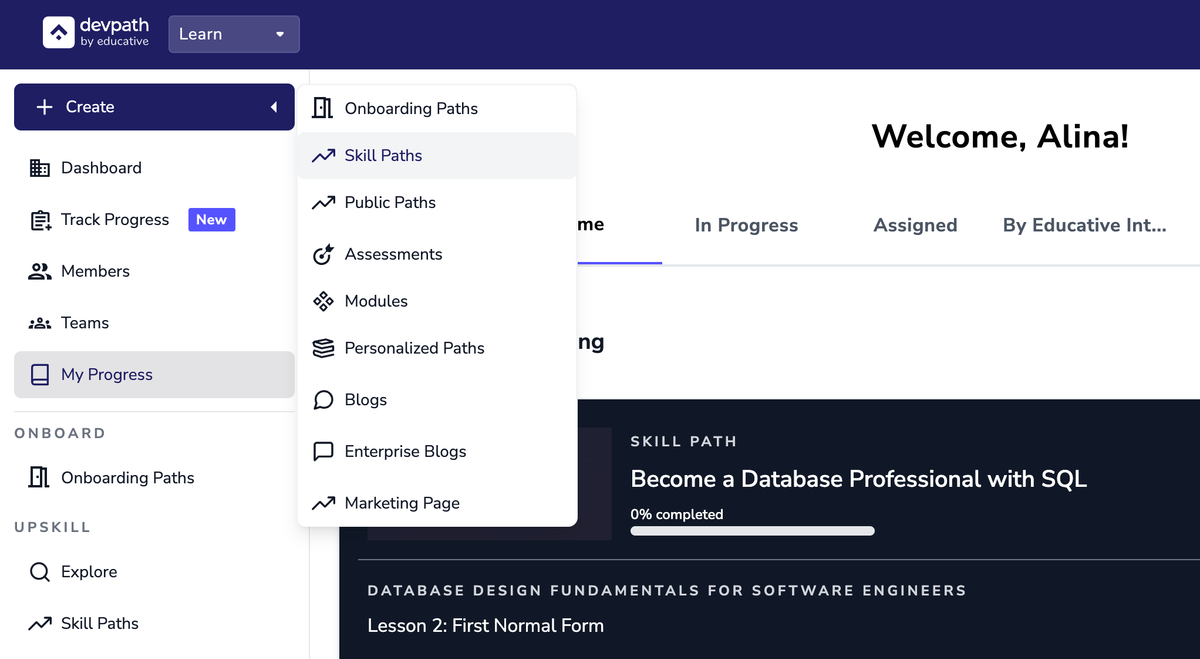
The following Editor will then open:

Provide a Path name and, if needed, an overview to communicate to other users what to expect from this Path.
Click where you see your name, “Alina Anjum,” in this case, or on the “Settings” option to add a Collaborator.
A Collaborator can also access and edit the Path to which you have added them.
They can work on the Skill Path simultaneously.
Add structure and content to the Path.
Create Categories in a Path.
Create Lessons in a Path.
Create Modules in a Path.
Link Existing Educative Content in a Path.
Use the Content Editor .
Once you are done, you can publish the Path (please read Published and Draft Paths).
Unpublished Path will show up in Drafts.
Published Paths will appear in the dashboard’s “Skill Paths” tab.
FAQs
Do I need to explicitly save the Path for it to become a Draft? If I don’t save but keep adding content, will all my data be lost?
No. Even if you don’t explicitly save a Path, an autosave feature processes in the background.
If you did not provide a Path name, your Draft is saved as “Untitled.”