Updating Paths
Explore how to update and edit Skill Paths in the Skill Path Editor. Understand the editing permissions, modify content such as categories, lessons, and modules, and learn the steps to republish your updated Path to make changes live.
We'll cover the following...
How to edit a Path
Note: Only the original Path author and the Path Collaborators can edit and update the Path.
Follow the steps below to edit a Path:
Log in to Educative and navigate to the Skill Paths dashboard.
Click the “Published Paths” or “Draft Paths” tab.
You will see the “Edit” option for Paths that you can edit.
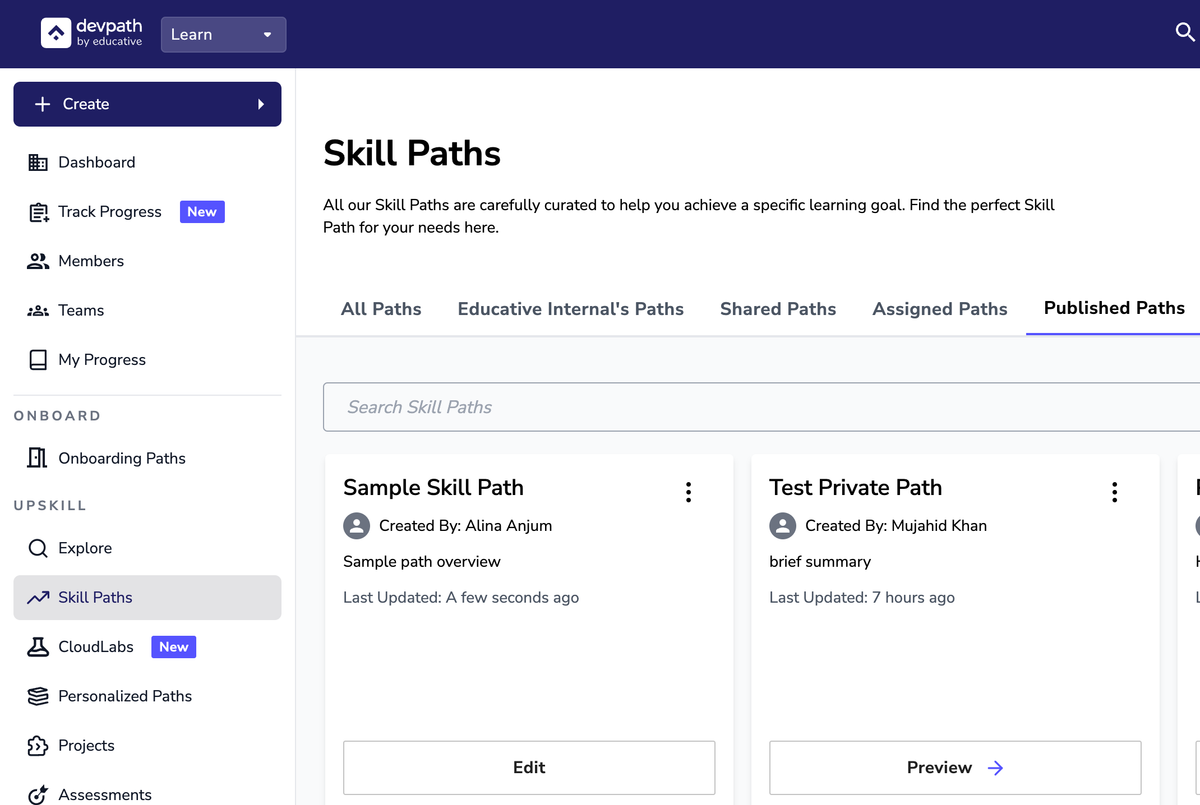
Click the “Edit” button.
In the Path Editor, create new content or update the existing content in the same manner as covered in the previous sections:
Create Categories in a Path.
Create Lessons in a Path.
Create Modules in a Path.
Link existing Educative Content in a Path.
Use the Content Editor.
FAQs
Will an updated Path automatically be published to all users?
No. After making updates, you have to explicitly publish the Path again to make the changes live.