Creating Lessons in a Path
Explore how to create and manage Lessons, the fundamental units of Skill Paths. Understand how to set estimated times, mark lessons as optional, and use the Path Editor to organize and edit lesson content. This lesson helps you build structured learning experiences to support team upskilling.
We'll cover the following...
What are Lessons?
A Lesson is the most basic component of a Path. It is essentially a content item that the Team Member must read.
A Lesson has the following components:
Title
Estimated time (optional)
Estimated time helps Team Members know approximately how much time they should allocate for the lesson.
Estimated time is provided in the “##h ##m” format. For example, 2h 20m.
The “Mark as optional” toggle (this can be selected to inform your Team Members that they can skip the lesson, for example, a supplementary reading.)
Lesson content
How to create a Lesson
In the Path Editor, click the “Create Lesson” button.
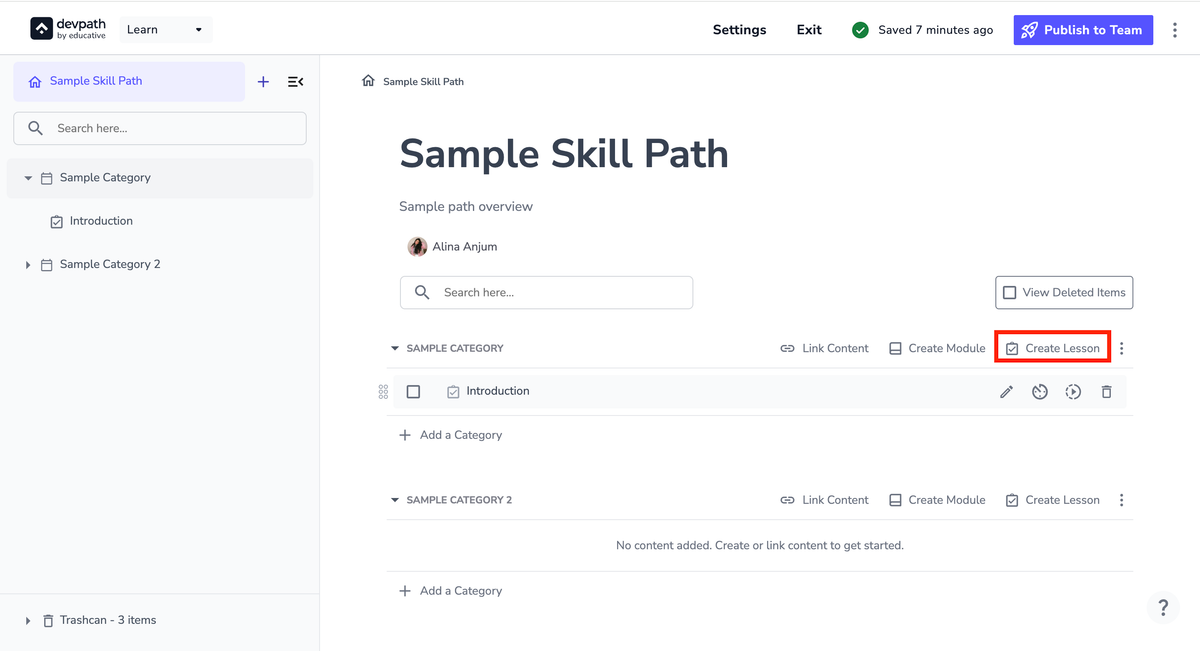
You can perform multiple actions directly from the dashboard by hovering over the Lesson as shown below:
Rename
Set estimated time
Mark as optional
Delete

Click the Lesson to start editing its actual content. This will open the Content Editor.
The next Lesson discusses in detail how to use the Editor. However, you can immediately start writing content or exploring the available widgets by typing the “/” key.
Within the Editor, you can change the estimated time or mark/unmark the Lesson as optional by hovering above the title.

You can add new Lessons from the side panel by clicking the “+” sign at the top. You can also add them by hovering over the Category you want to add them to, then clicking the “+” sign, and selecting the “Lesson” option.

Once you finish editing the Lesson, you can create more content from the side panel or return to the main Path Editor page by clicking the title at the top-left corner.

Note: Collaborators added to the Skill Path can also collaborate with you on Lessons.