Creating Modules in a Path
Explore how to create and manage Modules within Skill Paths using the Path Editor. Understand how Modules can be reused across different learning Paths, linked for easy updates, and customized with objectives, lessons, and advanced features to support efficient team upskilling and onboarding.
We'll cover the following...
What is a Module?
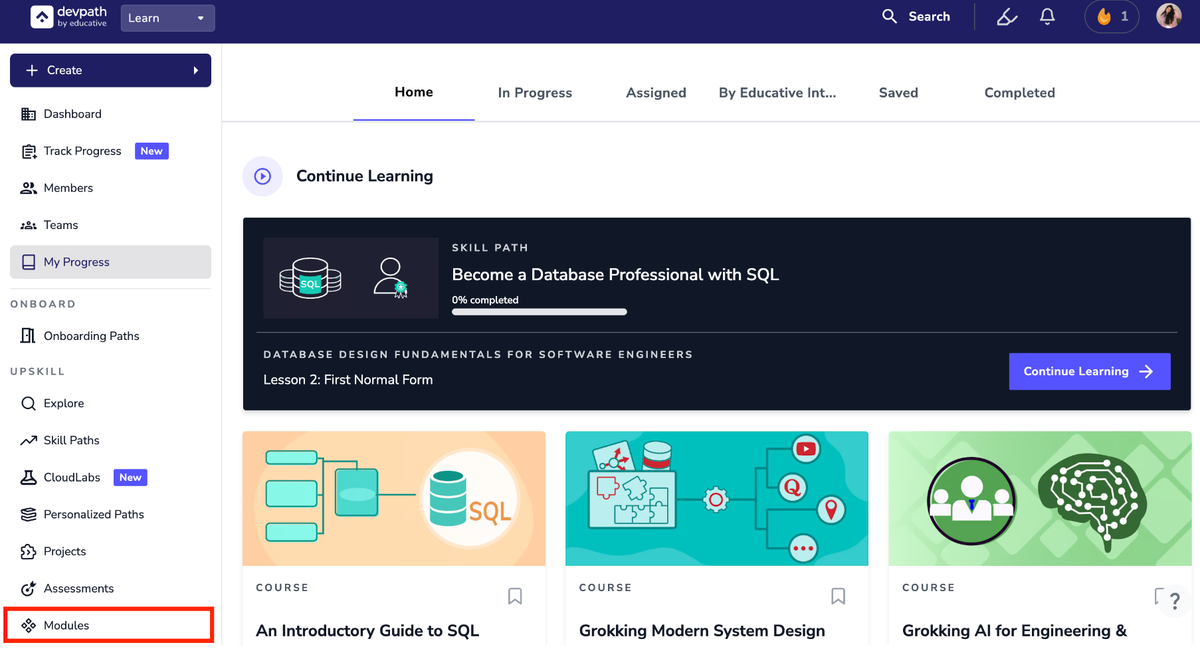
A Module is a collection of content that can be reused across your Onboarding Paths and Skill Paths. An example could be “Introduction to AI,” which would be needed for multiple Skill Paths made with varying difficulties. Creating a Module within a Path results in that Module being saved in a separate library. This library can be accessed from the side panel under the “Modules” section.
These Modules can also be directly linked into different Paths—this ensures that any changes made in the original Module reflect across all Paths the Module is in, thereby reducing the effort to update Paths.
How to create a Module
In the Path Editor, click the “Create Module” button.

Similar to tasks, you can perform certain actions by hovering over the Module, which have been listed below:
Set estimated time
Mark as optional
Delete
Click the Module to start editing its content.
Provide the title name and an optional overview.

Unlike Lessons, Collaborators added to the Path are not automatically added to the Module. You can click your name in the Module Editor or the “Settings” button to add a Collaborator.
You can also perform other actions in “Settings.”
Add learning objectives (what this Module aims to teach)—these will be visible to users who preview the Module.
Add a code execution file or a Docker container, if needed (Advanced).
Within Modules, you can:
Add categories
Note that deleting categories deletes all content within them.
Add a Lesson—these behave the same as the Lessons outside Modules.
Link DevPath content (either by searching or providing a URL).
Entire Courses
Specific Lessons from Courses
Answers
