Using the Content Editor
Explore how to use the Content Editor in DevPath to create written and interactive learning content. Understand how to add widgets, embed external content, and preview your Skill Path, enabling you to build structured and engaging learning paths for your team.
We'll cover the following...
How to create Content
DevPath’s Content Editor provides several widgets used to create written content and interactive content, such as widgets for writing and executing code.
You can start typing or add widgets by typing the “/” key and any widget name, such as “table.” The “/” symbol opens the widget panel, filtering results according to what you type.
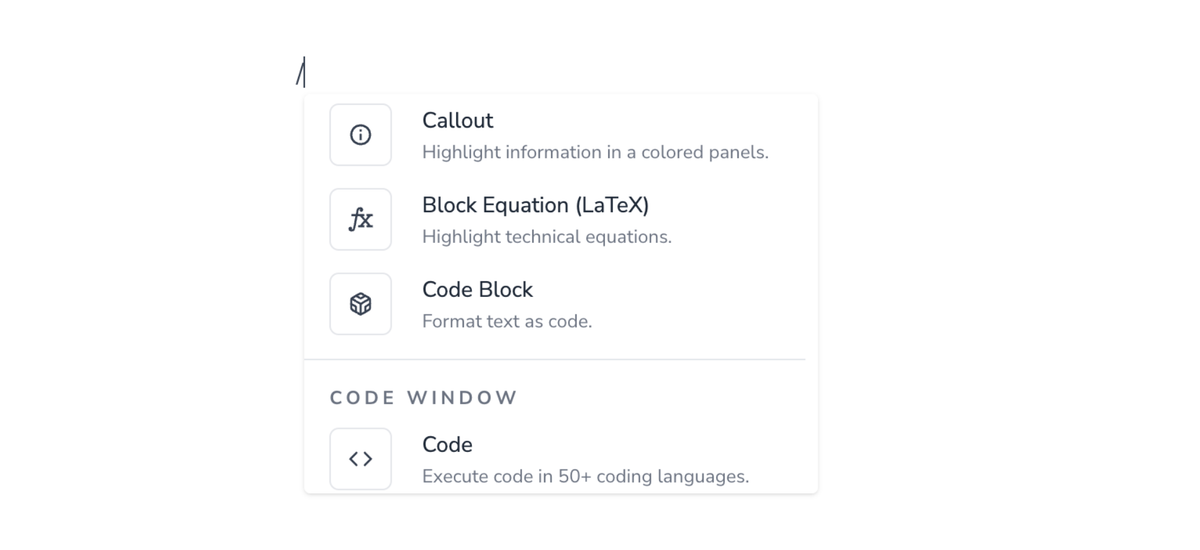
The best way to learn about all the widgets is to use them as needed. However, if you’re interested in reading more about the functionality and power of these widgets, we have a separate guide for that.
To see how the content would be shown to your Team Members, you can click the “Preview” button.
FAQs
Can content from other sources be copied directly into the Content Editor?
Yes. Content can be copied directly into the Editor. You can also use certain widgets to embed content, including Google Drive, Confluence, and PDF.