Getting Started with Next.js
Explore how to bootstrap your first Next.js application using the create-next-app CLI. Understand the project structure, run a development server with Fast Refresh, make live code edits, and learn how to create and run production builds for deployment.
We'll cover the following...
We’ve covered the “why” behind Next.js, and now it’s time for the “how.” Fortunately, the Next.js team has made this process straightforward by providing a single command that scaffolds a new project.
In this lesson, we will use the create-next-app command-line interface (CLI) to bootstrap our first project. Then, we’ll take a tour of the file structure it creates, learn how to run the development server, and even make our first live edit!
Scaffolding a new project
To begin, we use the official create-next-app tool. It’s an interactive CLI that asks a few questions to configure the project precisely how we want it. For our course, we’ll opt for a setup using JavaScript and Tailwind CSS.
When we run the command, it presents a series of prompts. We will answer No to TypeScript so our project uses plain JavaScript files (.jsx instead of .tsx).

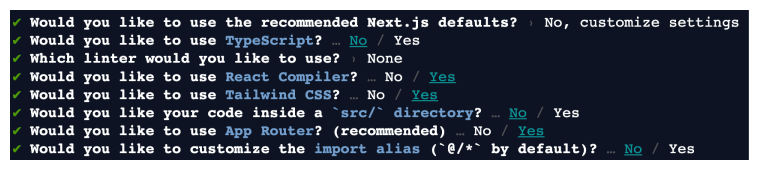
Once the process finishes, we have a fully functional Next.js application ready to go. As we chose not to use the optional src/ directory, it means all the application code (including the app/ folder) is placed at the root level of the project. If we had said Yes, those files would live inside a src/ subfolder instead.
Click to launch the terminal. In the terminal, you’ll see the command we use to create a project named my-app:
npx create-next-app@latest my-app
We use this command through npx to run the official Next.js project generator without installing anything globally.
Understanding the project structure
Let’s explore the files and folders create-next-app generated for us. The structure is intuitive and centered around the app directory, which is the core of the App Router architecture.
app/: This is where we’ll spend most of our time. It contains all of the application’s routes, UI components, and logic.page.js: It represents the home page of our application, corresponding to the/URL path.layout.js: It is the root layout for our entire application. It defines the main<html>and<body>structure and is a good place for shared UI like a navigation bar or footer.globals.css: It is a stylesheet for global rules imported directly intolayout.js.favicon.ico: It is our application’s icon, which browsers display in tabs.
public/: It is a directory for static assets that don’t go through the build pipeline, such as images and fonts. These can be referenced directly in our code from the base URL.node_modules/: It contains all third-party packages and dependencies. This folder should not be modified directly.package.json: It is the project’s manifest file. It lists scripts (such asnpm run dev) and tracks all dependencies, includingreactandnext.Configuration files: Depending on our setup, a few configuration files are generated:
next.config.mjs: It is the main configuration file for Next.js.jsconfig.json: It defines JavaScript project settings and path aliases..eslintrc.json: It configures ESLint, a tool that helps find and fix problems in our code.tailwind.config.js: It configures Tailwind CSS, allowing us to customize our design system.postcss.config.js: It configures PostCSS, a tool that transforms CSS with JavaScript plugins.
Note that the .next/ directory won’t appear initially. It’s generated automatically when the development server is started (npm run dev) or a production build is created (npm run build).
Running the development server
With our project set up, let’s start the development server to see it live.
npm run dev
Running the server launches the project in the current working directory. This makes the app available at the server’s URL and displays the default Next.js starter page in the browser.
The Fast Refresh feature
The most powerful feature of the development server is Fast Refresh. It intelligently rerenders only the components we’ve edited, preserving application state and providing near-instantaneous feedback. This makes it faster to tweak UI code during development.
Let’s see it in action.
Making your first edit
When we open app/page.js file in the widget below, we’re looking at the file that controls the home page (/ route). We’ll now modify the default home page as follows to experience how seamless the development workflow is.
export default function Home() {return <h1>Hello, Next.js </h1>;}
Line 1: We export a default function named
Home. This is the entry point for the root route.Line 2: The component returns a simple heading. This file, located at
app/page.js, maps to the/path.
When we save the changes in app/page.js, the browser will automatically update to show “Hello, Next.js World!” without a full page reload. Under the hood, Next.js detects the file change and sends a small update to the browser, which then hot-swaps the Home component’s code without losing the state of other components on the page.
Live editing in the widget: In a real dev setup (like VS Code +
npm run dev), Next.js auto-reloads the browser when you save changes. In the Educative environment, we can’t experience it directly because we must click “Run” to write changes to disk, which restarts the app before Fast Refresh can take effect.
However, we can overwrite the original file indirectly without clicking “Run.” We provide a prewritten file calledapp/page-modified.jsthat contains the updated version of the page. Once the server is running, open the hosted app and view the home page. Then click the + next to the Terminal to open a new terminal tab and run:cp usercode/app/page-modified.js project/app/page.js. The home page will change instantly.Note: The link below the widget opens the hosted app.
export default function Home() {
  return <h1 className="text-4xl font-bold text-gray-900">
    Hello, Next.js</h1>;
}Creating a production build
When we’re ready to deploy our application, we need to create a production-optimized build. This process bundles JavaScript, optimizes code and assets, and prepares the app for efficient production delivery.
To create a production build, we first stop the development server (with Ctrl + C) and then run:
npm run build
This command triggers the Next.js build process and outputs the final assets into the .next folder. To run this production version locally, we use the following:
npm run start
This starts a server that serves the optimized build, closely mirroring how our app will behave when deployed. It’s a crucial final check before going live.
Key takeaways:
The
create-next-appCLI is the standard tool for scaffolding new Next.js projects.The
appdirectory is the foundation of the App Router, containing layouts, pages, and components.npm run devstarts the development server with Fast Refresh for a seamless coding experience.npm run buildcreates a production-optimized version of our application.npm run startruns the production build locally for final testing.
Exercise: Identifying problems
See if you can identify the issues below. You can enter “Show me the answer” to see the solution.
Problem 1: Changes not showing up after npm run start
You run npm run build and then npm run start to see how your app will perform in production. You then make a change to app/page.js but don’t see the update when you refresh your browser. Why isn’t your change appearing, and what command must you run to see it?
Problem 2: Image not loading from the app/ folder
A developer on your team tries to add an image to the site by placing it inside the app/ folder and writing <img src="./my-image.jpg">. The image doesn’t load. What is the conceptual mistake they made, and how would you guide them to fix it?