
To start a new project, you can run the command npx create-next-app my-app. This will set up a basic Next.js project with all dependencies.
How to build a to-do list with Next.js
Key takeaways:
To create a new Next.js application, you start with initializing a project using the Next.js CLI. From there, you can configure the project, install dependencies, and set up essential components to start building the application.
The
useStateHook in React is crucial for managing state within components, such as a to-do list. By usinguseState, you can track and update the state of tasks, making it possible to dynamically manage the addition and deletion of items.In a dynamic to-do list, tasks can be added, deleted, and displayed using state management within the component.
The Context API in React allows for state management across multiple components, making it easier to share data without prop drilling.
Efficient and maintainable state management and UI patterns are essential for building scalable applications in Next.js. By applying best practices, such as using Hooks and the Context API, you can ensure that the applications are easier to maintain while delivering a smooth and consistent user experience.
Next.js is a powerful React framework that facilitates efficient server-side rendering, static site generation, and seamless client-side navigation. It’s widely used to build high-performance, SEO-friendly web applications. In this Answer, we’ll learn how to build a basic to-do list application in Next.js, covering everything from project setup to advanced state management using the Context API.
Setting up a new Next.js project
Follow these steps to set up a new Next.js project:
Step 1: Install Node.js
To start building with Next.js, ensure Node.js is installed on your machine. You can download and install it from the
Step 2: Create a new Next.js project
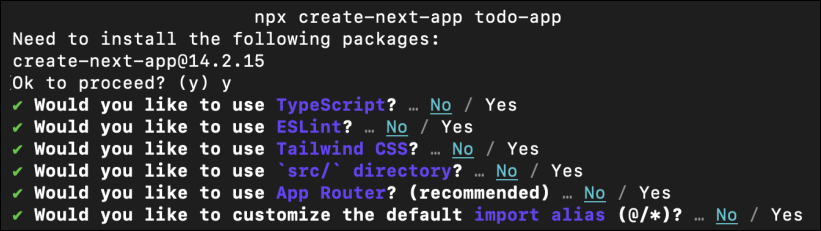
Run the command below to create a new Next.js project. This will set up all the necessary files and dependencies:
npx create-next-app todo-app
Creating a new Next.js project
We will be using the Pages Router in our example. Therefore, you need to choose “No” for each prompt when setting up the application.
Step 3: Start the development server
Navigate into the project folder and start the development server:
cd todo-appnpm run dev
Starting the development server
Your Next.js app should now be running at http://localhost:3000.
Want to build a professional project in Next.js? Try out this project: Build an Interactive E-Library Using Next.js and Tailwind.
Steps to create a basic to-do list
In this section, we’ll build a simple to-do list using React hooks in Next.js. Let’s go through each step in detail.
Step 1: Import dependencies and initialize state
First, we need to import the useState hook from React and initialize two state variables in the /todo-app/pages/index.js file:
task: For tracking the current task.tasksArray: For storing the list of tasks.
import { useState } from "react";export default function Home() {const [task, setTask] = useState(''); // State for the current taskconst [tasksArray, setTasksArray] = useState([]); // State for the list of tasks// ...}
Step 2: Handle input changes
Create a function inputChange to update the task state whenever the user types in the input field.
export default function Home() {// ...const inputChange = (e) => {setTask(e.target.value); // Updates the task state with the input value};// ...}
Step 3: Handle form submission
Create a function inputSubmit to handle form submissions. It prevents the default form behavior, checks if the task is not empty, and adds the task to tasksArray.
export default function Home() {// ...const inputSubmit = (e) => {e.preventDefault(); // Prevents default form submissionif (task.trim()) { // Checks if the task is not emptysetTasksArray([...tasksArray, task]); // Adds the new task to the arraysetTask(''); // Clears the input field}};// ...}
Step 4: Handle task deletion
Create a function handleDelete that removes a task from tasksArray based on its index.
export default function Home() {// ...const handleDelete = (index) => {setTasksArray(tasksArray.filter((_, i) => i !== index)); // Filters out the task at the given index};// ...}
Step 5: Render the UI
Finally, render the user interface with a form to add tasks, and display the list of tasks using the map function. Each task is displayed with a delete button to remove it from the list.
export default function Home() {// ...return (<div><h1> To-do List in Next.js </h1><form onSubmit={inputSubmit}><input type="text" value={task} onChange={inputChange} placeholder="Enter a task" /><button type="submit">Add task</button></form><ul>{tasksArray.map((task, index) => (<li key={index}>{task}<button onClick={() => handleDelete(index)}>Delete</button></li>))}</ul></div>);}
Get hands-on experence with Next.js app development with our “Product Review and Feedback System Using Next.js” project.
Code example
The following is the complete code for the to-do list application using the steps described above. Click the “Run” button to execute the to-do list coding example.
import { useState } from "react";

export default function Home() {
  const [task, setTask] = useState('');
  const [tasksArray, setTasksArray] = useState([]);

  const inputChange = (e) => {
    setTask(e.target.value);
  };

  const inputSubmit = (e) => {
    e.preventDefault();
    if (task.trim()) {
      setTasksArray([...tasksArray, task]);
      setTask('');
    }
  };

  const handleDelete = (index) => {
    setTasksArray(tasksArray.filter((_, i) => i !== index));
  };

  return (
    <div>
      <h1> To-do List in Next.js </h1>
      <form onSubmit={inputSubmit}>
        <input type="text" value={task} onChange={inputChange} placeholder="Enter a task" />
        <button type="submit">Add task</button>
      </form>
      <ul>
        {tasksArray.map((task, index) => (
          <li key={index}>
            {task}
            <button onClick={() => handleDelete(index)}>Delete</button>
          </li>
        ))}
      </ul>
    </div>
  );
}
To-Do list
Code explanation
The code above can be divided into the following parts:
Lines 1–5: In this part, we import the
useStateHook from React and initialize two state variables:taskto track the current task being entered, andtasksArrayto store the list of tasks.Lines 7–9: Then, we define the
inputChangefunction that will be called whenever the input field value changes. It updates thetaskstate with the current value of the input field.Lines 11–17: In this section, we define the
inputSubmitfunction, which is used to handle form submissions. We prevent the default form submission behavior, and if the task is not empty, we add it to thetasksArraystate array. In addition, we use an empty string to reset thetaskstate.Lines 19–21: In this section, we define the
handleDeletemethod, which deletes a task based on its index from thetasksArraystate array. It makes a new array using thefilterfunction that doesn’t include the job at the given index.Lines 25–29: The user interface is rendered by this last section. There is a header, an input area, and a submit button on the form. The
inputChangefunction changes the input field’s value, which is connected to thetaskstate.Lines 30–37: A list of tasks is generated by mapping the
tasksArraystate array, with each task presented as a list item. There is a “Delete” button next to each task, which runs thehandleDeletemethod with the task’s index.
Want to build a professional E-commerce application with Next.js? Try this project: Build a Multi-Tenant E-Commerce App with Next.js and Firebase.
State management using Context API in Next.js
For more complex state management, the Context API provides a robust solution. Here’s how you can integrate it into your to-do list app.
Step 1: Create context and provider
Create a new file called TodoContext.js in the context directory to manage the global state of your to-do list.
// pages/_app.js

import { TaskProvider } from "./context/TodoContext.js";

function MyApp({ Component, pageProps }) {
  return (
    <TaskProvider>
      <Component {...pageProps} />
    </TaskProvider>
  );
}

export default MyApp;
The context and app provider
Step 2: Wrap the app with the provider
In the _app.js file, wrap your application with the TaskProvider to make the state available globally.
import { TaskProvider } from "./context/TodoContext.js";

function MyApp({ Component, pageProps }) {
  return (
    <TaskProvider>
      <Component {...pageProps} />
    </TaskProvider>
  );
}

export default MyApp;
Wrap the application
Step 3: Use context in the components
In this step, we’re using the useTaskContext Hook to access the to-do list state and dispatch actions to update it.
// pages/index.js

import { useState } from "react";
import { useTaskContext } from "./context/TodoContext.js";

export default function Home() {
  const [task, setTask] = useState('');
  const { state, dispatch } = useTaskContext();

  const inputChange = (e) => {
    setTask(e.target.value);
  };

  const inputSubmit = (e) => {
    e.preventDefault();
    if (task.trim()) {
      const newTodo = {
        id: Date.now(),
        text: task,
        completed: false,
      };
      dispatch({ type: 'ADD_TODO_TASK', payload: newTodo });
      setTask('');
    }
  };

  const handleDelete = (id) => {
    dispatch({ type: 'REMOVE_TODO_TASK', payload: id });
  };

  return (
    <div>
      <h1> To-do List in Next.js </h1>
      <form onSubmit={inputSubmit}>
        <input type="text" value={task} onChange={inputChange} placeholder="Enter a task" />
        <button type="submit">Add task</button>
      </form>
      <ul>
        {state.tasks.map(task => (
          <li key={task.id}>
            {task.text}
            <button onClick={() => handleDelete(task.id)}>Delete</button>
          </li>
        ))}
      </ul>
    </div>
  );
}
Use context
Note: Components can access the state and dispatch actions to update it, resulting in a simpler and more maintainable state management solution for our Next.js application.
Code example
See the complete executable application below:
// pages/_app.js

import { TaskProvider } from "./context/TodoContext.js";

function MyApp({ Component, pageProps }) {
  return (
    <TaskProvider>
      <Component {...pageProps} />
    </TaskProvider>
  );
}

export default MyApp;
Code implementation using Context APi
Continue developing Next.js applications
Explore these projects and courses for hands-on practice:
Frequently asked questions
Haven’t found what you were looking for? Contact Us
How do I start a new Next.js project?
Can I use Next.js with the Context API?
How do I manage complex state in a Next.js application?
Can I use a database with my Next.js to-do list app?
Free Resources
Copyright ©2026 Educative, Inc. All rights reserved