Creating Grid Layouts
Explore how to create various grid layouts using Tailwind CSS in this lesson. Learn to define grid columns, rows, and element spans to build flexible, responsive designs. Understand techniques to control layout flow and experiment with different grid utilities for complex web page structures.
We'll cover the following...
In this lesson, we’ll actually create the layouts to work with multiple HTML files.
First layout
Let’s start with the first layout. The following image shows what we want to build.

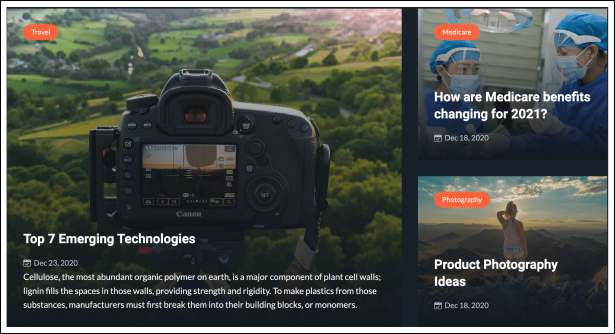
To build the first layout, in the root directory, create a new grids.html file with the following content.
Click the “Run” button to see our app.
<!-- /grids.html -->
<!doctype html>
<html>

<head>
  <meta charset="UTF-8" />
  <meta name="viewport" content="width=device-width, initial-scale=1.0" />
  <link rel="stylesheet" type="text/css" href="tailwind.css">
  <style>
    .box {
      color: white;
      background-color: green;
      min-height: 150px;
      padding-top: 10%;
      padding-left: 15%;
      font-size: 1.5rem;
      font-weight: 700;
    }
  </style>
</head>

<body>
  <div class="mx-auto p-8 w-full lg:w-1/2">
    <h1 class="text-3xl font-bold">Grid Layout Examples</h1>
    <h2 class="my-6 text-2xl underline underline-offset-2">Example #1</h2>
    <div class="grid grid-cols-3 grid-rows-2 gap-x-4 gap-y-2">
      <div class="box row-span-2 col-span-2">1</div>
      <div class="box">2</div>
      <div class="box">3</div>
    </div>
    <!-- Add the next grid examples here -->
  </div>
</body>

</html>Note: You can find the output by clicking the URL and the output tab.
Here’s the expected output of the first layout:

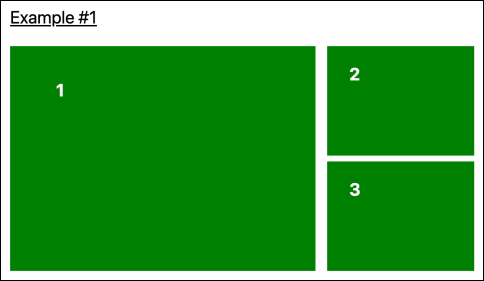
Note: The
boxclass is used here and later just for demonstration purposes so we can see the visual shape of our grids.
As we can see, we’ve effectively replicated the design in the ...