Variables, Strings, Numbers, and Operators
Explore how to use variables, strings, numbers, and arithmetic operators in JavaScript to create a flexible point-of-sale receipt system. Understand how to perform calculations for prices and quantities, display formatted text, and dynamically update totals, moving beyond hardcoded values to practical coding skills for real-world projects.
The project
Let’s revisit POS systems. When you shop at a store and check out at the counter, the cashier uses a machine that prints a receipt. Behind that machine is software written with code that handles the transaction and generates the receipt. Here’s what a sample receipt looks like.

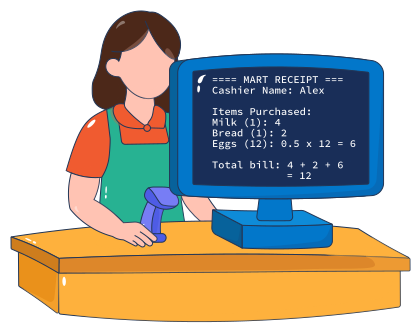
You have been hired to create this point-of-sale system! You can see the sample receipt.
You know how to print stuff on the screen, but don’t want to hardcode everything. You want a flexible enough system such that if the price of an item changes, you don’t have to change the code manually at various places. The same is the case for the quantity of items.
The programming concept
Today’s main programming concepts are variables and arithmetic operators. Variables can hold many types of information:
Numbers (Like prices or quantities)
Strings (Like
"Milk"or"Cashier Name")Booleans (True/False values for conditions)
Operators tell the computer what kind of math or text operation to perform:
Numeric operators:
+,-,*,/,%String operators: Using
+to join words or values (called concatenation)
Many applications, such as a receipt-generating system, need to perform calculations like adding prices, subtracting discounts, multiplying quantity by price, dividing totals, or applying percentages for tax. This allows the system to compute totals automatically instead of relying on manual math.
The significance of the concept in the project
If we take a look at the bill and just focus on one item, let’s say milk:
Milk (1): 4
There are a couple of things happening here that eventually add up to the total bill:
The receipt shows the quantity of milk in parentheses; in this case, (1) means the customer bought one bottle of milk.
Next to it, there’s the price: 4.
Finally, when the receipt prints the total bill, this value is added together with the other items:
Total bill: 4 + 2 + 6 = 12
The important part is not just writing “12” as the total but also showing that it comes from calculations. That’s exactly what a program should do: compute the result step by step using operators.
Without operators and variables, you would have to type the totals manually. If the prices or quantities change, you must update the receipt in multiple places. The system handles the math automatically with operators and variables, ensuring the totals are always correct.
In a POS system, variables, strings, numbers, and operators work together to handle tasks like calculating item costs, printing readable labels, and summing up the full cart.
Learn to code for the concept
Let’s learn to code for what we’ve just learned as a concept. Before starting, let’s see what we have to print.
=== MART RECEIPT ===Cashier Name: AlexItems Purchased:Milk (1): 4Bread (1): 2Eggs (12): 0.5 x 12 = 6Total bill: 4 + 2 + 6 = 12
We want to start with a very simple calculation. Suppose a customer buys 1 bottle of milk that costs 4. Instead of writing the number directly every time, we’ll use arithmetic operators to do the math for us.
In JavaScript, a variable is like a labeled box that stores information. We create them using let (if we expect the value to change) or const (if the value should stay fixed).
Here, JavaScript multiplies 1 × 4 and prints the result. We are not just typing console.log(4); we are letting the program calculate it for us.
Its real usage is when these calculations add up to a total bill. Let’s expand the receipt to include milk, bread, and eggs:
In the code above, line 14 uses the addition operator + to add up all the item totals, while lines 10–12 use the multiplication operator * to calculate each product’s cost.
Why don’t you change the value of milkQuantity to 3 in line 1 and then click the “Run” button? See how the code automatically updates the total bill without you having to change it manually anywhere else. That’s the power of combining numbers, operators, and stored values in code.
Concept at a glance:
let bill = 10;creates a variable namedbilland assigns it the value 10.const cashier = "Alex";creates a constant namedcashierthat stores text and cannot be changed.You can use the operators
+,-,*,/, and%to perform basic arithmetic.Strings can be combined with
+, changed with.toUpperCase(), and measured with.length.Variables and values can be included inside a
console.log()statement in the same way as numbers or text.
Learn to code with AI
So far, our receipt shows up in the console using console.log(). That works for us as programmers, but in the real world, a cashier or customer doesn’t open the console: they expect the receipt to appear on the screen in a clear, readable format.
Here’s the new project goal:
Create a web page that prints the receipt directly.
Show a breakdown with subtotal and final total.
Display the receipt neatly inside a
<pre>block so the formatting looks like a real printed slip.
Generate code with AI
You already know by now how to talk to your AI buddy. Give it some details of what you want to build, and let’s see how it guides you:
Here’s an example of what you can ask the AI assistant:
Test code with AI
Once the AI has generated the code, copy-paste it into the following code widget, run it, ask the AI Mentor for feedback, and improve the code if necessary.
If you’re stuck, click the “Show Solution” button.
Food for thought:
What happens if you change
quantityto 5 orpriceto 20?Why do we use
.toFixed(2)here instead of just printing the number?
Practice makes perfect
Now that your receipt shows subtotal, service fee, and total, let’s try a new variation. Imagine your store also charges a service fee of 5% for every order. Update your program so the receipt shows:
Subtotal
Service Fee (5%)
Final Total including all charges
This makes your POS system more realistic, since many stores add service fees in addition to percentage-based fees.
Problem
This is what needs to be generated now:
=== MART RECEIPT ===Cashier Name: AlexItems Purchased:Milk (1): 4Bread (1): 2Eggs (12): 0.5 x 12 = 6Service Fee (5%): $0.6Total bill: 4 + 2 + 6 = 12.6Thank you for shopping with us!
Code its solution
Complete this code and test it with AI Mentor:
If you’re stuck, click the “Show Solution” button.
Perfect! Now your calculator doesn’t just multiply numbers: it can also handle real-world scenarios like service fees. That’s one step closer to a real POS system.