Installing Visual Studio
Set up a local development environment using Visual Studio or the .NET CLI, manage SDKs, explore unit testing, and review troubleshooting tips.
We'll cover the following...
Visual Studio setup (Windows)
Although this course does not require a local Visual Studio installation, we recommend downloading it from the official website to practice local development. If you have previously followed an older .NET framework tutorial, you will notice that modern Visual Studio installations are more modular and streamlined. The Community version is free and will be sufficient for almost all of our purposes, except commercial development.


Launch the installer after the download finishes. The next window asks what workloads we want to install along with the IDE.
Visual Studio is highly functional and can be used to develop applications using a variety of programming languages and frameworks. Since we are only building C# and .NET console applications, the default workload settings are sufficient.
By installing Visual Studio, we install the necessary compilers and the latest version of .NET. After installation is complete, we can start with our first program.
Launch Visual Studio and click on “Create a new project”. In the next window, choose “Console Application,” give our program a name, choose the version of .NET to use, and click on “Create”. These steps produce a newly created project:
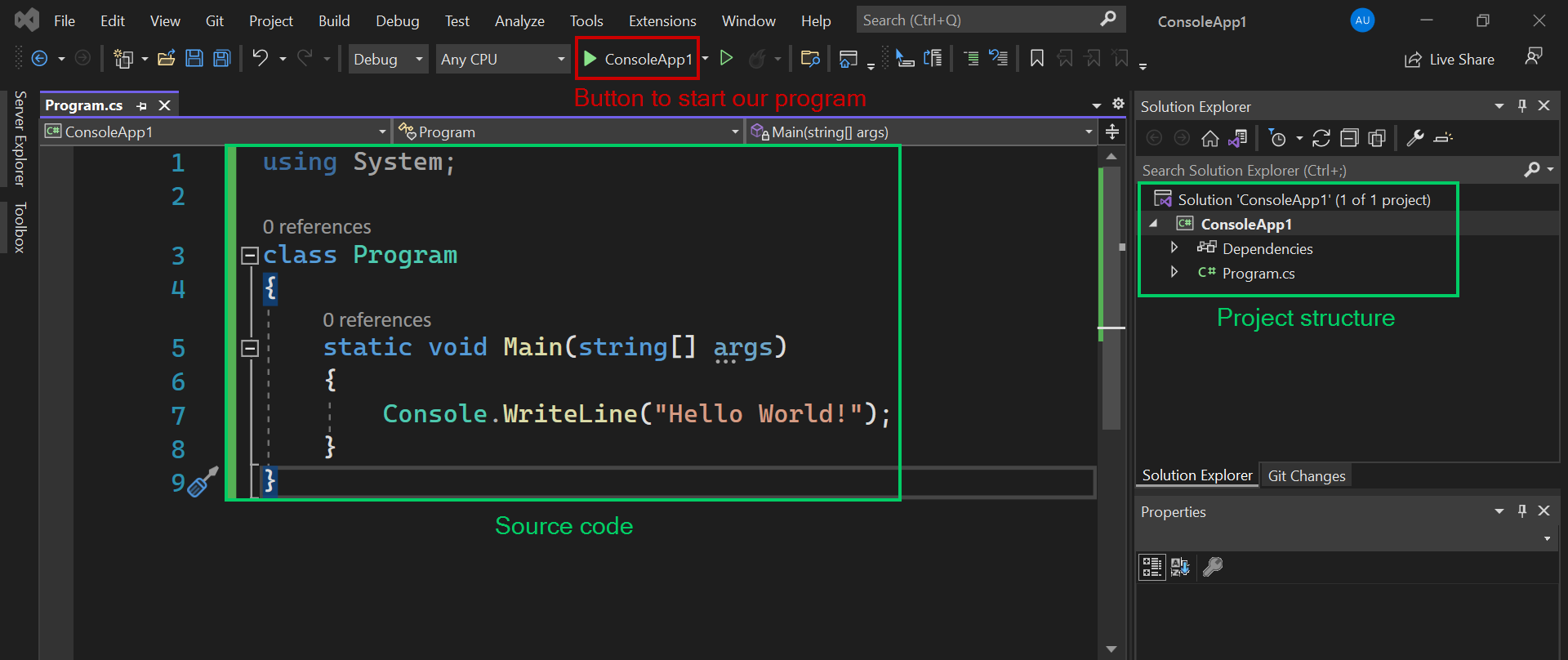
The main editor window displays the generated C# source code. In modern versions of .NET, this generated code uses top-level statements. This means it might contain just a single line of code to print text to the console.
The “Solution Explorer” on the right displays our project’s structure. In our case, it is the default structure of a C# project:
The Dependencies node contains the frameworks and packages that our project relies on. For a standard console application, this includes the core .NET runtime libraries (
Microsoft.NETCore.App).Program.cscontains our source code. C# code files use the.csextension.
Installing the .NET SDK on Linux
While we demonstrated Visual Studio on Windows previously, modern .NET is fully cross-platform. We can install the .NET SDK on macOS and various Linux distributions. For example, on Ubuntu, we can install it using the APT package manager:
sudo apt-get updatesudo apt-get install -y dotnet-sdk-10.0
Line 1: We update the local package index.
Line 2: We install the .NET 10 SDK package.
Managing SDKs and runtimes
We might have multiple versions of .NET installed on our machine. We can list the installed SDKs and runtimes using the CLI:
dotnet --list-sdksdotnet --list-runtimes
Line 1: This command outputs all installed SDKs.
Line 2: This command outputs all installed execution environments.
To guarantee a project uses a specific SDK version, we can pin it using a global.json file in the project root. This is highly recommended for team environments to ensure consistent builds:
{"sdk": {"version": "10.0.100"}}
Lines 1–5: We instruct the .NET CLI to use exactly version
10.0.100for this repository.