Initial Styling
Explore how to style a parent container with CSS by setting width, background images, and using padding shorthand. Understand padding values and directions to create effective spacing. This lesson prepares you to build a polished movie order page layout.
We'll cover the following...
As a refresher, here’s the markup we’ll be working with.
What do you make of it?
Also, here’s the end goal, again.

Styling the Parent Class
I’m taking a top-down approach with this project. So, I’ll walk you through styling the parent container, .movie
First things first.
- We need the width of
.movieto fill the entire width available. - We need to set a background image on
.movie. One that doesn’t get cut off, but covers the entire area available. - Finally, we need a nonuniform spacing within the
.moviecontainer. i.e padding.
The image below should help you understand these requirements.

Take a look at the graphic above. The portion highlighted in red represents the nonuniform spacing, and the much darker highlight shows the background image beneath the text.
Take a second look if you don’t quite get it.
Here’s the bit of code we need.
Everything above should look familiar at this point. Maybe, except the padding shorthand.
Let me explain that.
The padding shorthand
Assuming you’re new to the padding shorthand form, let me explain how it works.
padding: 20px 20px 20px 190px is the same as writing:
  padding-top: 20px;
  padding-right: 20px;
  padding-bottom: 20px;
  padding-left: 190px
The shorthand assigns each value in a clockwise direction.Top first, then right, bottom and left.

If 2 values are passed into the padding shorthand, the first value will be assigned to both padding-top and padding-bottom. The second value will be assigned to padding-left and padding-right
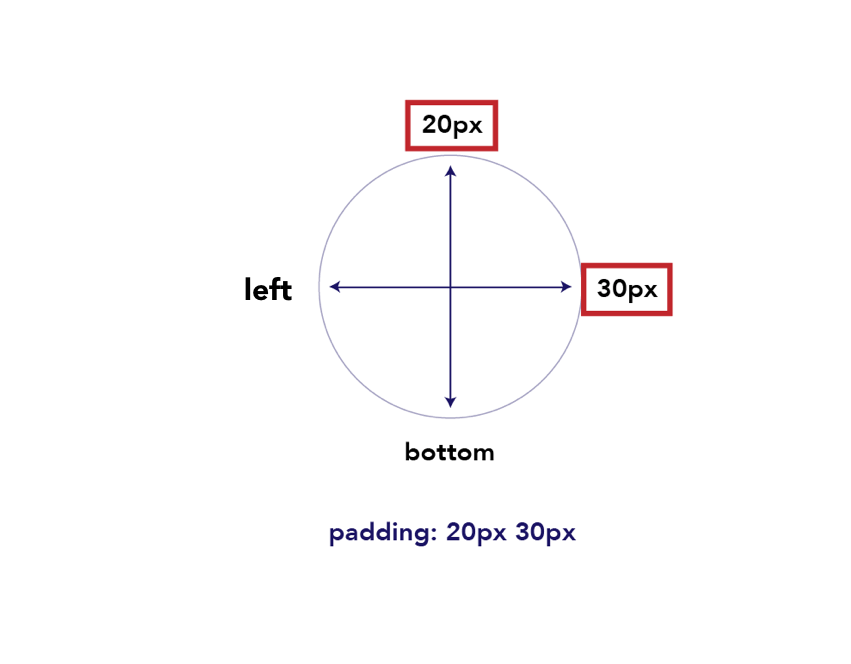
Moving in a clockwise direction, the values are filled as shown above. The left and bottom values are inherited from the opposing side. See the direction of the arrow heads above.
Example
padding: 20px 30px;
This is the same as:
padding-top: 20px;
padding-bottom: 20px;
padding-left: 30px;
padding-right: 30px
If 3 values are passed into the padding shorthand, what happens?
Example
padding: 20px 30px 40px

The left value will be inherited from the right, i.e 30px
Thus, padding-left will be 30px. Other values remain as expected. Please refer to the image above.
The last possible configuration is this:
padding: 30px
If you have just one value, then all padding values will be equal to this single value. Like this:
 padding-top: 30px;
 padding-right: 30px;
 padding-bottom: 30px
 padding-left: 30px
Continuing the Project
Now that you understand the initial styling, let’s go ahead and see the result of that. We will continue this in the next lesson.
Go on champ!