Creating and Running a Simple App
Explore how to create and run a basic Dash app by writing your app.py file, setting up the app layout with HTML components, and running the app with debugging enabled. This lesson helps you understand the core building blocks of a Dash app, including managing layout elements and using key HTML parameters to structure your app's interface.
We'll cover the following...
Let’s build our first simple app! We’ll start with the app.py file.
Steps to create and run the app
Create a file, name it app.py, and write the following code:
- Lines 1–2: We import the required packages using their usual aliases.
- Line 3: We instantiate the app.
- Lines 4–6: We create the app’s layout. This app’s layout contains one element—the list passed to
html.Div, which corresponds to itschildrenparameter. This will produce anH1element on the page. - Lines 7-8: We run the app. Note that we set
debug=Truein theapp.run_servermethod. This activates several developer tools that are really useful while developing and debugging.
Running example
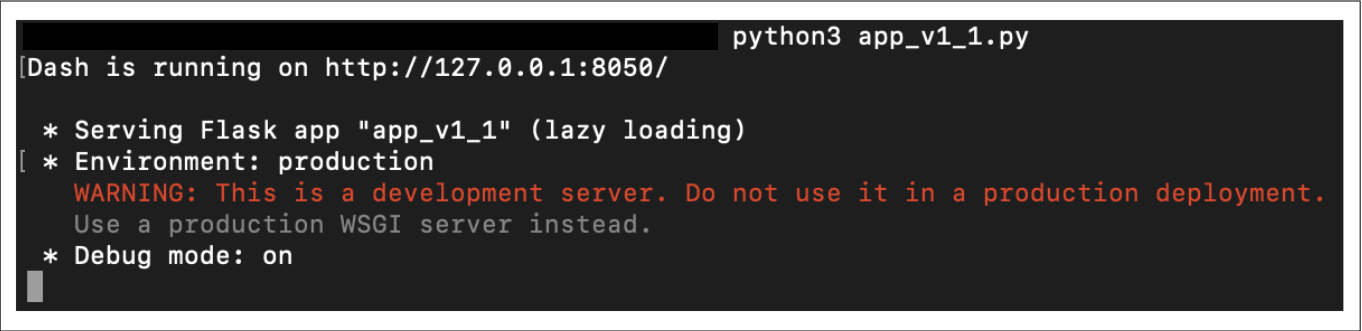
We’re now ready to run our first app. Go ahead and click the “Run” button. You should now see an output like the one shown in the illustration below, which indicates that the app is running:

A working example has been set up below:
import dash
import dash_html_components as html

app = dash.Dash(__name__)

app.layout = html.Div([
    html.H1('Hello, World!')
])


if __name__ == '__main__':
app.run_server(host='0.0.0.0', debug=True, port=8050)Congratulations on running your very first Dash app! Now, if we point our browser to the URL shown next to “Your app can be found at:” in the widget above, we should see the “Hello, World!” message in H1 on the page. In the terminal of the widget above, it shows that it is serving a Flask app called “app,” with a warning that this server is not designed for production use. We’ll cover deployment later, but this server is good enough to develop and test our apps.


As specified, we see the text in H1, and we can also see the blue button as well. Clicking this button will open some options in the browser, and it will be more useful once there are callback functions and/or errors while running the app. We wouldn’t have gotten the blue button if we had run the app with debug=False, which is the default.
Now that we have established a good-enough understanding of the main elements that go into creating a Dash app and we have run a minimal one, we’re ready to explore two packages that are used for adding and managing visible elements—first, Dash HTML Components, and after that, we’ll explore how to use Dash Bootstrap Components.
Here, we’ll mainly be focusing on the app.layout attribute of our app and making changes to it. It’s straightforward to do so; we simply add elements to the top-level html.Div element’s list (the children parameter).
html.Div(children=[component_1, component_2, component_3, ...])
Adding HTML components to a Dash app
Since the available components in the package correspond to actual HTML tags, it’s the most stable package. Let’s quickly explore the parameters that are common to all its components.
At the time this is being written, Dash HTML Components has 131 components and 20 parameters that are common to all of them.
Let’s go over some of the most important ones that we’ll be using frequently:
-
children: This is typically the main (and first) container of the content of the component. It can take a list of items or a single item. -
className: TheclassNameattribute and theclassattribute are the same thing. However theclassattribute has been namedclassNamein the Dash library. -
id: While we won’t be covering this parameter in this chapter, it’s the one crucial to making interactivity work, and we will be using it extensively while building the app. For now, it’s enough to know that arbitrary IDs can be set to components so that they can be identified and used later to manage interactivity. -
style: This is similar to the HTML attribute of the same name but with a few differences. First, its attributes are set using camelCase. So, say we want to set the following attributes in Dash HTML Components:<h1>A Blue Heading</h1> -
We specify them this way:
import dash_html_components as html
html.H1(children='A Blue Heading',
     style={'color': 'blue',
            'fontSize': '40px',
            'marginLeft': '20%'})
The style attribute is set using a Python dictionary. The other parameters have different uses and rules, depending on the respective component that they belong to.
Let’s now practice adding a few HTML elements to our app. Going back to the same app.py file, let’s experiment with adding a few more HTML elements and run the app one more time, as we just did. We’ll keep the top and bottom parts the same and will mainly edit app.layout. A working example is set up below:
import dash
import dash_html_components as html

app = dash.Dash(__name__)

app.layout = html.Div([
    html.H1('Poverty and Equity Database',
            style={'color': 'blue',
                   'fontSize': '40px'}),
    html.H2('The World Bank'),
    html.P('Key Facts:'),
    html.Ul([
        html.Li('Number of Economies: 170'),
        html.Li('Temporal Coverage: 1974 - 2019'),
        html.Li('Update Frequency: Quarterly'),
        html.Li('Last Updated: March 18, 2020'),
        html.Li([
            'Source: ',
            html.A(children='https://datacatalog.worldbank.org/dataset/poverty-and-equity-database',
                   href='https://datacatalog.worldbank.org/dataset/poverty-and-equity-database')
        ])
    ])
])

if __name__ == '__main__':
app.run_server(host='0.0.0.0', debug=True, port=8050)-
Line 11: We add a
<p>element. -
Lines 12–22: We add an unordered list,
</p><ul>, within which we added a few list items,<li>(using a Python list), the last of which contained a link using the<a>element.
Note that since these components are implemented as Python classes, they follow Python’s conventions of capitalizing class names—html.P, html.Ul, html.Li, html.A, and so on.
Feel free to experiment with other options, adding new HTML components, changing the order, trying to set other attributes, and so on.