The 10 best JavaScript IDEs (and code editors) for 2026

The best JavaScript IDEs and code editors for 2026 range from full-featured IDEs like WebStorm and IntelliJ IDEA Ultimate to lightweight code editors like VS Code, Sublime Text, and Notepad++. In 2026, the landscape has shifted significantly toward AI-native editors (Cursor, Windsurf, Zed) and cloud-based development environments (GitHub Codespaces, StackBlitz, Replit) that integrate intelligent code generation, real-time collaboration, and instant environment setup.
Key takeaways
- AI-powered editors are now mainstream: Tools like Cursor, Windsurf, and Zed go beyond autocomplete to offer conversational coding, context-aware refactoring, and repository-wide editing.
- Cloud IDEs eliminate local setup friction: GitHub Codespaces, StackBlitz WebContainers, and Replit let you spin up preconfigured environments instantly from any device.
- Top picks vary by use case: WebStorm and IntelliJ IDEA Ultimate suit complex enterprise projects, VS Code dominates as a free and extensible editor, and Notepad++ remains the lightest option for Windows users.
- Selection criteria matter more than rankings: Cost, learning curve, OS compatibility, speed, plugin ecosystems, and team collaboration features should all factor into your decision.
- TypeScript and testing support are essential: Look for built-in type inference, integrated debuggers, test runner support (Jest, Vitest, Mocha), and monorepo navigation when evaluating any editor.
As one of the core languages of the World Wide Web, the internet simply wouldn’t be the same without JavaScript. JavaScript is a high-level programming language used in both front-end and back-end web development. You can use JavaScript to create dynamic web content and applications. If you’re a web developer or work in another capacity related to web development, you’ll gain a competitive edge by learning JavaScript.
In this article, we’ll share our take on the 10 best JavaScript IDEs and code editors for 2026. While the previous years saw the discontinuation of Adobe’s open-source code editor, Brackets, there’s still a world of applications available to help JavaScript developers streamline their workflow.
Master JavaScript for free
Educative’s interactive courses are built by developers, for developers. Start mastering JavaScript now with Educative’s 1-week free trial.
What are IDEs and code editors?#
Integrated development environments (IDEs) and code editors (CEs) are software applications used to write and edit code. We could technically write code in a plain text editor, but IDEs and CEs offer additional functionalities designed to streamline the coding process.
IDEs generally come with more functionalities than code editors, but some code editors can be customized to have similar functionalities to that of an IDE. Code editors often come with features such as syntax highlighting, autocompletion, and brace matching. IDEs combine multiple developer tools in a single graphical user interface. At minimum, these tools usually consist of a code editor, a compiler or interpreter, and a debugger.
Things to consider when choosing an IDE or code editor#
Every programmer has an individual preference when it comes to IDEs and code editors. You may try a few applications before finding a good fit.
Here are some criteria to consider when assessing your options:
- Cost: There are both free and paid applications to choose from. Define your budget and consider the fact that you may try several applications before finding the right fit. If you’re open to paid options, many applications offer a free trial period.
- Learning curve: It takes time to adapt to a new interface and memorize keyboard shortcuts. While learning curves are unique for each user, some applications are known to have a steeper learning curve for beginners. If you opt for one of these applications, allow yourself the time to adapt and develop an efficient workflow.
- Functionality and customizability: Applications have varying features, so it helps to know what functionalities you’re looking for. Some popular functionalities are multilingual support, autocompletion, and Git and GitHub integration. If an IDE or code editor doesn’t offer a certain functionality, see if it can be obtained via plugins or extensions.
- Speed: You’ll want to consider both the application’s reputation for speed, as well as whether your machine or device is powerful enough to host the application.
- Machine requirements: Your machine’s specs can impact an application’s performance. You’ll experience slowdowns if you overload your device’s processing power and memory with a heavy program. While there are certainly exceptions to this rule, a code editor will generally be a more lightweight application than an IDE.
- OS compatibility: Some IDEs and code editors don’t always offer cross-platform functionality. Be mindful of OS compatibility as you review options.
- User support: An established software company’s application may have more robust user support than a less popular application. If you’re a beginner with a learning curve ahead of you, you may want to look for applications that have customer support and active user communities.
- Accessibility: Unfortunately, IDEs and code editors leave a lot to be desired when it comes to improving accessibility. While many offer features to support visually impaired programmers, such as screen readers or font adjustments, these tools have shortcomings. For instance, screen readers fail to convey the visual indicators of some of the most helpful features, such as syntax highlighting and refactoring suggestions.
AI-powered editors: The new era of JavaScript development#
In 2026, the biggest shift in developer tools is the rise of AI-native code editors. These tools go beyond autocomplete — they understand your codebase, generate functions, refactor code, write tests, and even explain complex logic.
Cursor and Windsurf: AI-first editors built on top of VS Code that integrate conversational coding, context-aware refactoring, and repository-wide editing.
Zed: A lightweight, collaborative editor focused on speed, multiplayer coding, and built-in AI assistants.
WebStorm AI: JetBrains’ flagship IDE now includes smart AI suggestions, inline documentation, and test generation.
Why it matters: Choosing an editor in 2026 isn’t just about features — it’s about how well it integrates AI into your development workflow.
Cloud development environments and remote work#
Local development isn’t the only option anymore. Cloud-based IDEs let you spin up environments instantly, collaborate in real time, and code from any device without complex setup.
GitHub Codespaces: Preconfigured environments hosted in the cloud with full VS Code functionality.
StackBlitz WebContainers: Run full Node.js environments directly in your browser — ideal for quick prototyping and frontend projects.
Replit: A browser-based editor with AI support and collaborative coding features.
Why it matters: Cloud IDEs eliminate “works on my machine” problems, speed up onboarding, and make remote collaboration seamless.
Modern terminal-based editors: Lightweight and extensible#
Not every project needs a full IDE. Modern terminal-first editors like Neovim and Helix are fast, extensible, and deeply integrated with the Language Server Protocol (LSP).
Neovim: A modernized version of Vim with strong plugin ecosystems, Treesitter syntax parsing, and JS/TS LSP support.
Helix: A minimalist, Rust-powered editor designed for speed, code intelligence, and instant startup.
Why it matters: These editors are ideal for developers who prefer a lightweight environment without sacrificing modern tooling.
Local vs. cloud development: How to choose#
Today’s development environment choices aren’t just about which editor you like — they’re about where you want to code.
Feature | Local Editors (VS Code, WebStorm) | Cloud IDEs (Codespaces, StackBlitz) |
Setup time | Requires local installation | Ready in minutes |
Performance | Better for large projects | Dependent on internet speed |
Collaboration | Extensions required | Built-in sharing and live coding |
Security | Full local control | Managed infrastructure |
Cost | Usually free / one-time license | Pay-as-you-go or subscription |
Tip: Use local IDEs for complex backend or enterprise work, and cloud IDEs for quick prototyping, hackathons, or remote teamwork.
JavaScript/TypeScript essentials: What to look for in 2026#
When choosing an editor, JavaScript and TypeScript support should go beyond syntax highlighting. Look for tools that include:
Integrated TypeScript support: Built-in type inference, inline documentation, and refactoring tools.
Built-in debugger: Seamless integration with Node.js, Chrome, or browser DevTools.
Test runner integration: Support for Jest, Vitest, or Mocha directly in the editor.
Monorepo support: Efficient navigation and dependency management for large codebases.
Dev Container support: Predefined development environments with consistent tooling.
Why it matters: These features save hours of manual setup and improve productivity across the entire development lifecycle.
IDE selection for team workflows#
If you’re choosing an editor for a team, collaboration and scaling become crucial considerations. Include sections that compare:
Version control integration: Git/GitHub support, pull request reviews, and conflict resolution tools.
Pair programming & live collaboration: Native support (Zed, Replit) vs. extensions (Live Share in VS Code).
CI/CD integration: How easily the IDE ties into build pipelines and deployment processes.
Beyond these basics, consider additional factors that significantly impact team productivity and workflow efficiency:
Onboarding and developer experience: Look for editors that allow new team members to start coding quickly with pre-configured environments, shared workspace settings, and built-in onboarding documentation. Cloud IDEs like Codespaces make this especially easy by removing the need for local setup.
Shared coding standards: IDEs with built-in linting, formatting, and automated style enforcement (like ESLint or Prettier integration) ensure consistent code quality across the team.
Project-wide search and refactoring: Enterprise-scale projects often span dozens of repositories. Choose tools that make it easy to refactor code across large monorepos and search globally for functions, variables, or components.
Workspace synchronization: Editors like VS Code and JetBrains IDEs can sync extensions, settings, and keyboard shortcuts across team members, improving consistency and reducing context switching.
Integrated project management tools: Some IDEs offer native integrations with Jira, Trello, Linear, or GitHub Issues, letting teams manage tasks directly from their development environment.
Security and compliance: For enterprise teams, features like role-based access control, audit logging, and secret management are critical when selecting an IDE.
Pro tip: When evaluating IDEs for team workflows, prioritize tools that support scalability, standardization, and automation — these factors will have the greatest long-term impact on productivity and developer satisfaction.
The 10 best JavaScript IDEs and code editors#
WebStorm (IDE)#
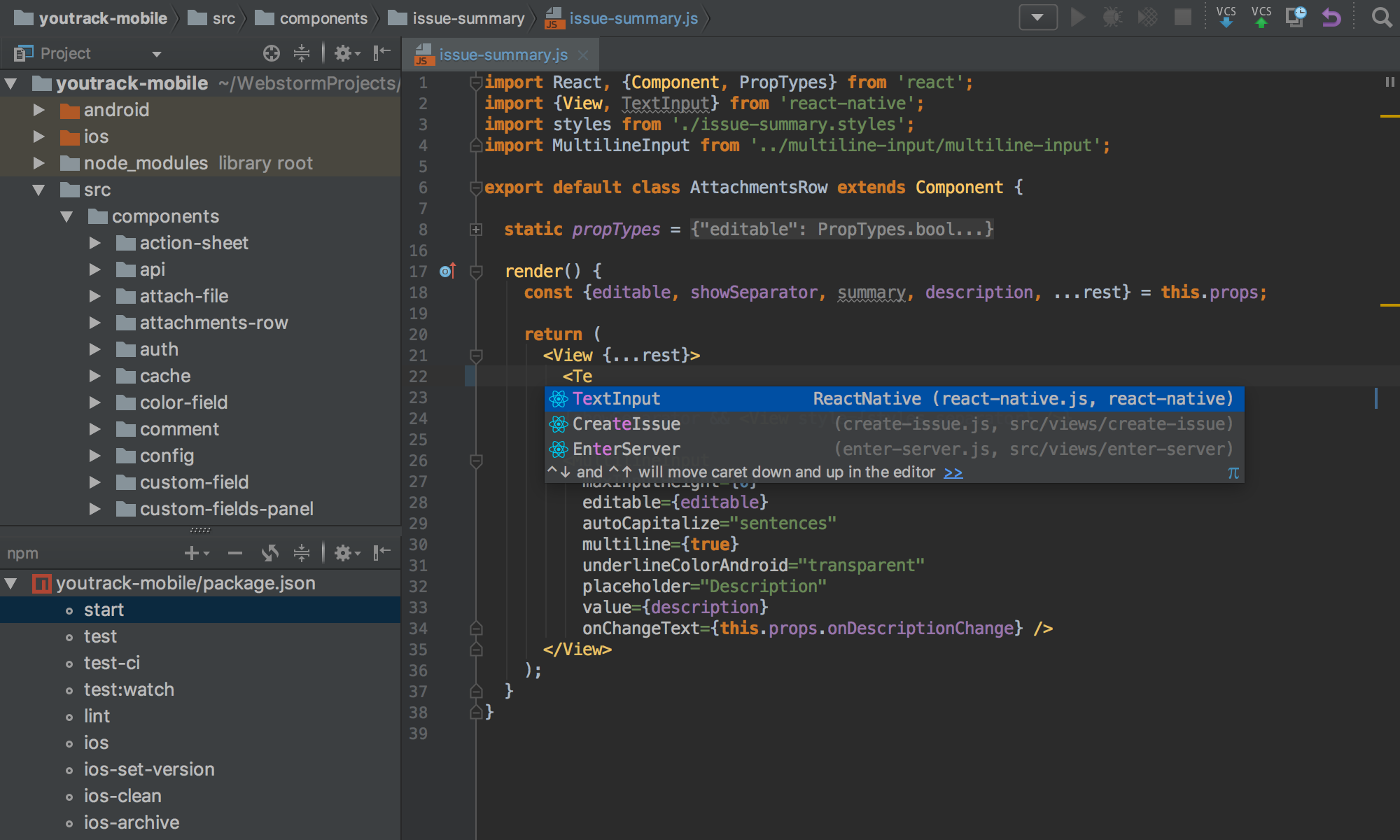
WebStorm is an integrated development environment specializing in JavaScript and TypeScript. Many web developers use WebStorm for back-end and front-end development. WebStorm is a product of JetBrains. It supports JavaScript frameworks such as Node.js, Angular.js, and React. Its features include GitHub integration, smart autocompletion, and code refactoring across all project files.
Pros:
- Reliable updates and user support
- Customizable with plugins
- Available on Windows, Linux, and macOS
- Free for students and open-source projects
Cons:
- Can consume device memory
- Occasional slow loading time
Use case: You’re a multilingual web developer looking for an IDE to support complex projects.
Price: $12.90 per month for individual users. A free version is available to students and non-commercial open-source projects.
IntelliJ IDEA Ultimate (IDE)#
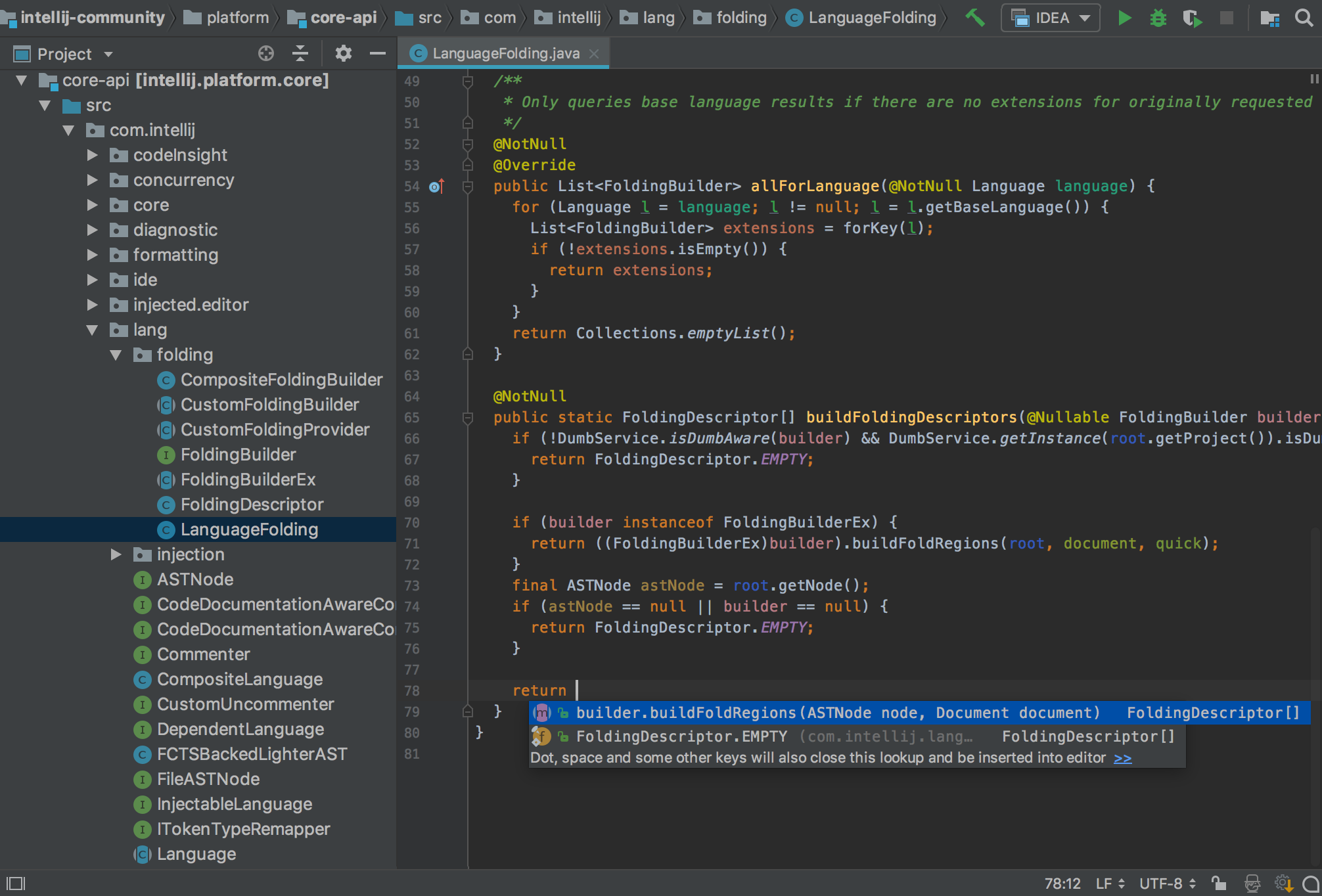
IntelliJ IDEA Ultimate is a Java-centric IDE that is also popular for JavaScript development. At the time of its first release in 2001, IntelliJ was one of the first Java IDEs to integrate functionalities such as code navigation and code refactoring. Luckily, IntelliJ has more capabilities today, including coding assistance and support for JavaScript frameworks such as Node.js.
IntelliJ is a JetBrains product. If you choose IntelliJ, give yourself time to adapt, as some users report a steep learning curve. IntelliJ has a free and open-source counterpart, IntelliJ IDEA Community, but it unfortunately doesn’t support JavaScript.
Pros:
- Intuitive user interface
- Accurate autocompletion based on DOM model
- Accessibility features include a screen reader
Cons:
- Indexing can be slow
- Steeper learning curve
- Expensive
- Free version doesn’t support JavaScript
Use case: You’re a professional who needs a wide set of functionalities for your projects.
Price: $49.90 per month for individual users.
Komodo Edit (CE) and Komodo IDE#
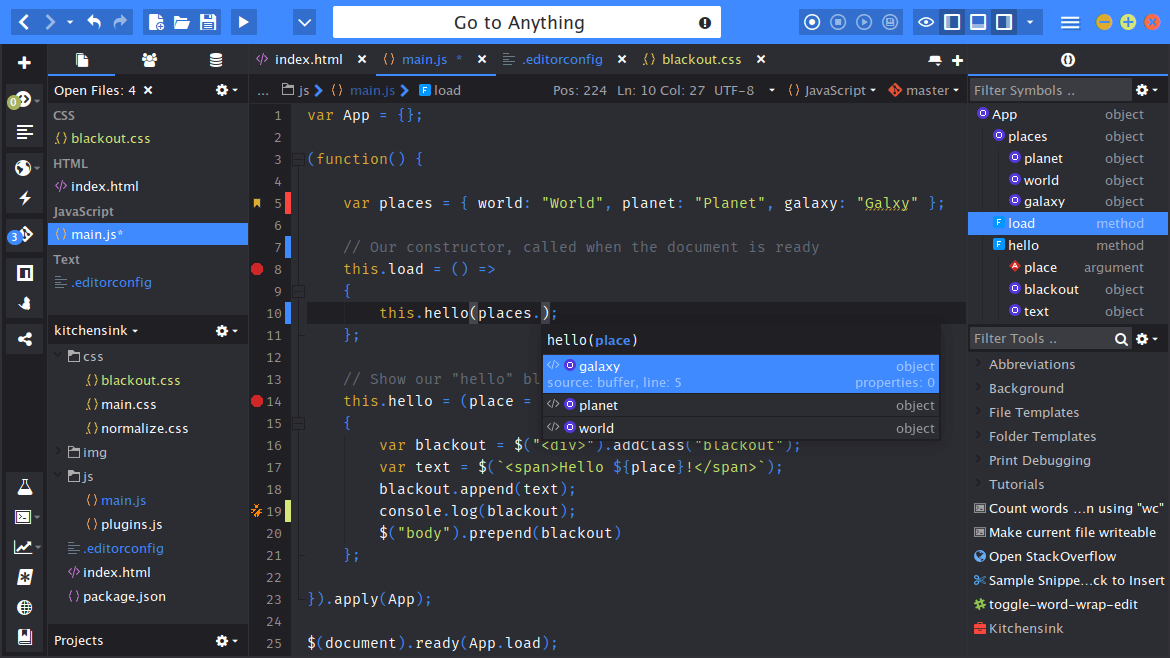
Developed by ActiveState, Komodo Edit and Komodo IDE are applications used for dynamic programming languages. Komodo Edit is a free open-source code editor. Its commercial counterpart, Komodo IDE, is an IDE with expanded functionalities. Komodo IDE is now free as part of the ActiveState platform.
Beginners may find it easier to start with Komodo Edit, as some users report a steep learning curve for Komodo IDE. Komodo Edit offers an inbuilt FTP client, autocompletion, code folding, and smart syntax highlighting. More advanced functionalities, such as debugging and unit testing, are reserved for Komodo IDE. Both can be customized with plugins and macros.
Pros:
- Macros customization
- Komodo IDE functionalities include live preview, Git integration, version control, and remote collaboration
- Regularly maintained and improved
- Cross-platform
Cons:
- Steeper learning curve for beginners
- Advanced features reserved for Komodo IDE
- Komodo IDE is not supported or maintained by developers for Python
Use case: You want a minimalist coding environment. You’re actively prototyping and showcasing websites.
Price: Komodo Edit is free. Komodo IDE is free as part of the open-source ActiveState Platform.
AWS Cloud9 (IDE)#
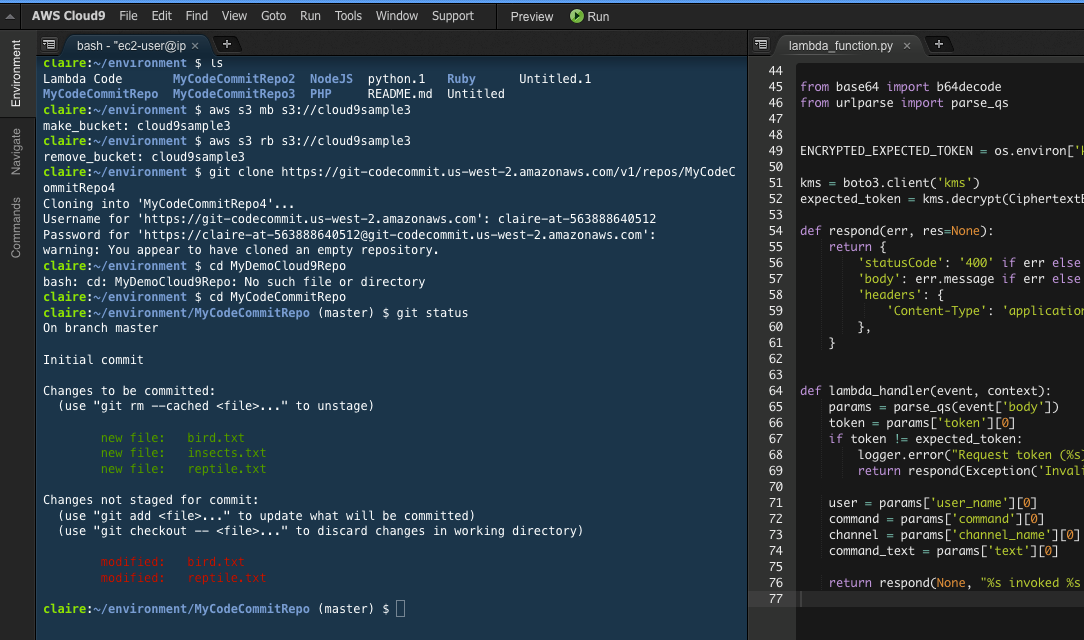
AWS Cloud9 is an IDE hosted on the cloud. Anyone with a stable internet connection and AWS account can access the power of this online IDE. This is especially beneficial for those who can’t afford to locally install a heavy IDE on their device.
AWS Cloud9’s functionalities include real-time language analysis and syntax highlighting. AWS Cloud9 also lets you share and edit code with collaborators in real-time. The IDE can be further customized with plugins.
Pros:
- Intuitive user interface
- Real-time collaboration prevents merge conflicts and overwriting
- Functionalities include Kube tooling and integrated shell
- Local installation not needed
Cons:
- Requires stable Internet access
- Not free
- Requires AWS account
Use case: You need an IDE’s functionalities but can’t afford to install one locally on your machine. You need team collaboration tools. You’re interested in serverless development and want a development environment that is preconfigured to support it.
Price: AWS Cloud 9 is priced with a pay-for-value billing model.
NetBeans (IDE)#
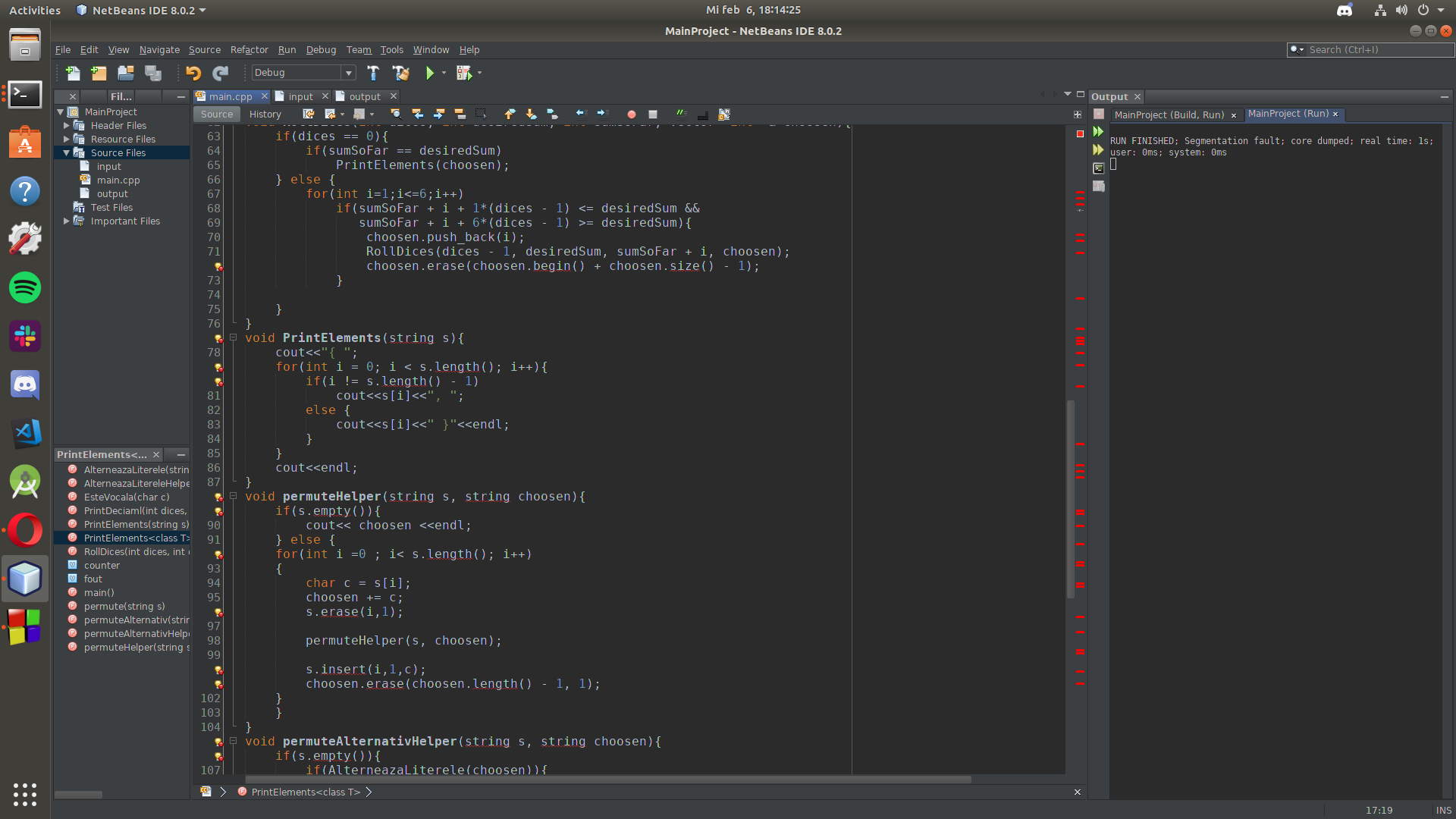
NetBeans is a free IDE that is well-known to Java programmers. While it’s most commonly used for Java, NetBeans supports multiple languages including JavaScript, HTML5, and CSS3. The NetBeans JavaScript editor comes with syntax highlighting and autocompletion, as well as inbuilt jQuery support. NetBeans supports JavaScript frameworks such as Angular, Express, Vue, React, and Mocha.
Many programmers love NetBeans for its intuitive and customizable interface. It comes out of the box with many functionalities, so you can hit the ground running upon installation. However, NetBeans is known to be demanding on resources. It may not run smoothly if your device has lower specs.
Pros:
- Features include a debugger, inbuilt Git support, and code folding
- UI is easy to customize
- Available on Windows, Mac OS, Linux
Cons:
- Difficult to integrate with other tools
- Minimal add-on features
- Demanding on resources
- Can be slow even for small front-end projects
Use case: You’re a Java or polyglot developer with a device that can handle a heavyweight application.
Price: Free.
Ace the JavaScript interview and land your dream job
Practice hundreds of real interview questions, covering everything from data structures to system design. Start your interview prep today with Educative’s 1-week free trial.
Eclipse (IDE)#
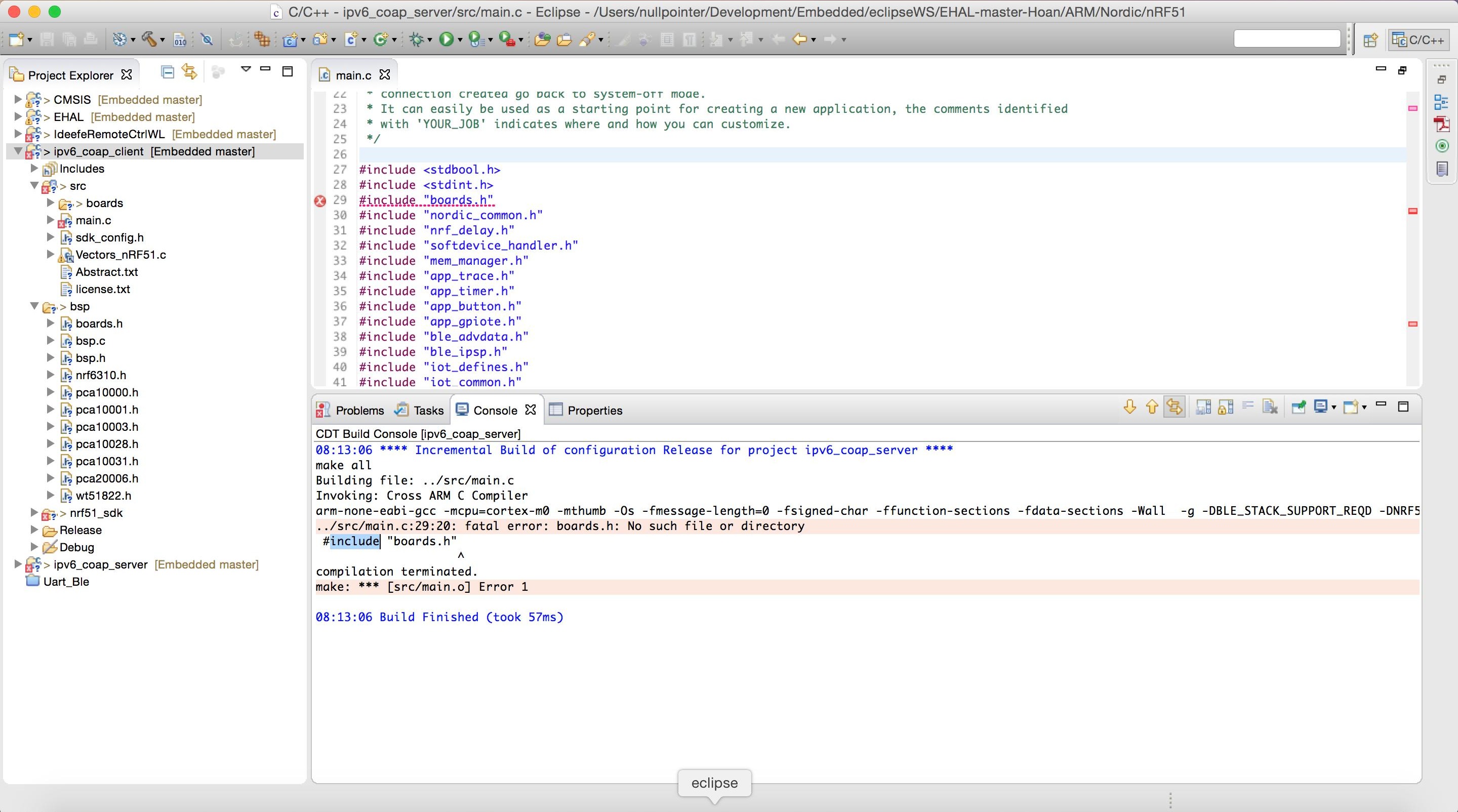
Eclipse is an open-source IDE that was first released in 2004. Its focus is Java development, but it also supports JavaScript and other programming languages. Eclipse has a base workspace and can be customized with plugins to expand functionality. You’ll want to factor in extra setup time because of this. JavaScript development tools, for instance, will need to be installed.
Pros:
- Highly customizable
- Large user base and community-built plugins
- Uses Emacs key bindings
Cons:
- Limited support
- Demanding on resources
- Many consider the UI counterintuitive
Use case: You prefer open-source software and don’t mind taking time to customize it. You enjoy what others may consider an old-school interface.
Price: Free.
Sublime Text (CE)#
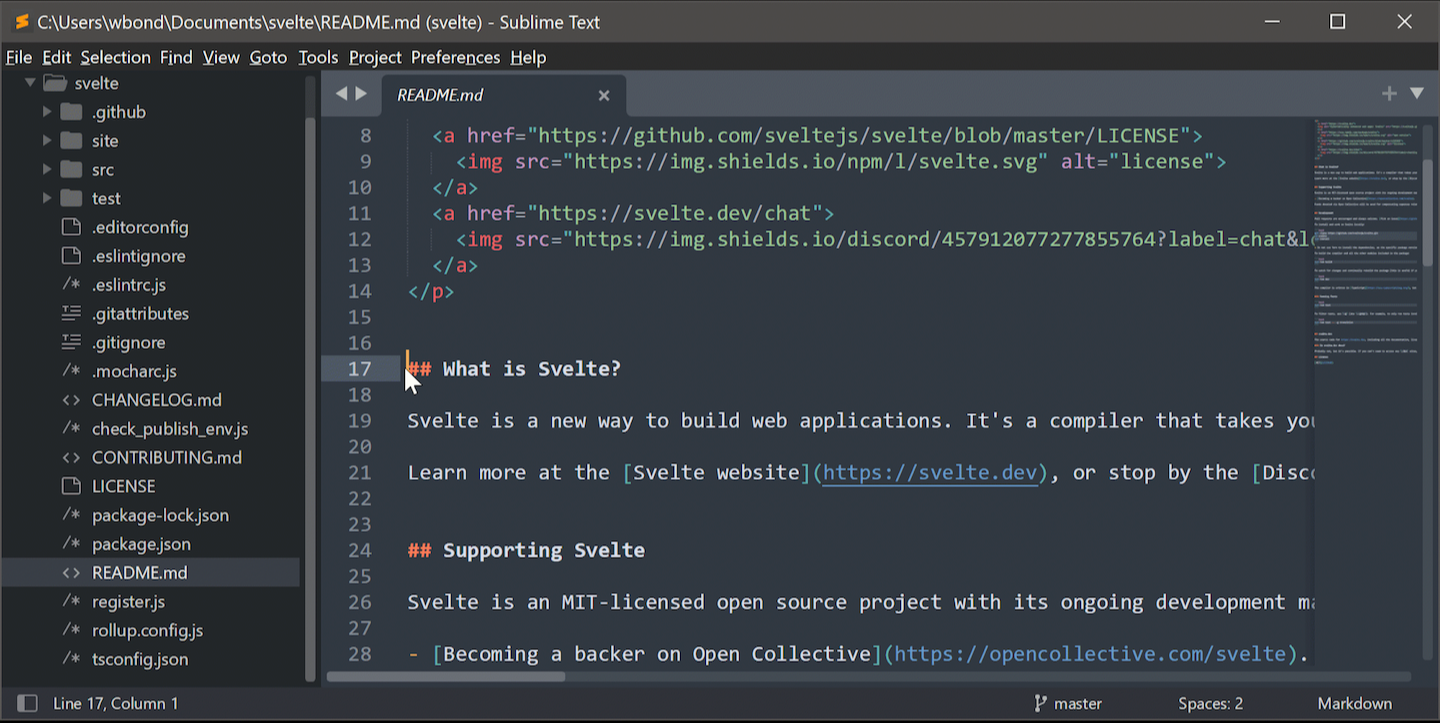
Sublime Text is a source code editor for both programming and markup languages. Many developers are drawn to Sublime Text for its speed and versatility. It’s a highly customizable code editor with an extensive selection of user-built plugin packages.
Pros:
- Fast, lightweight, and customizable
- Features include color coding, multi-selection, customizable hotkeys, and Git integration
- Available on Windows, macOS, and Linux
Cons:
- Lacks intelligent code completion
- Takes time to set up
- Steeper learning curve
- Work environment features are lacking
Use case: You prioritize application speed and regularly work with large files. You are a freelancer or work for a small business and don’t need robust work environment features.
Price: $99 per year for individual users.
Atom (CE)#
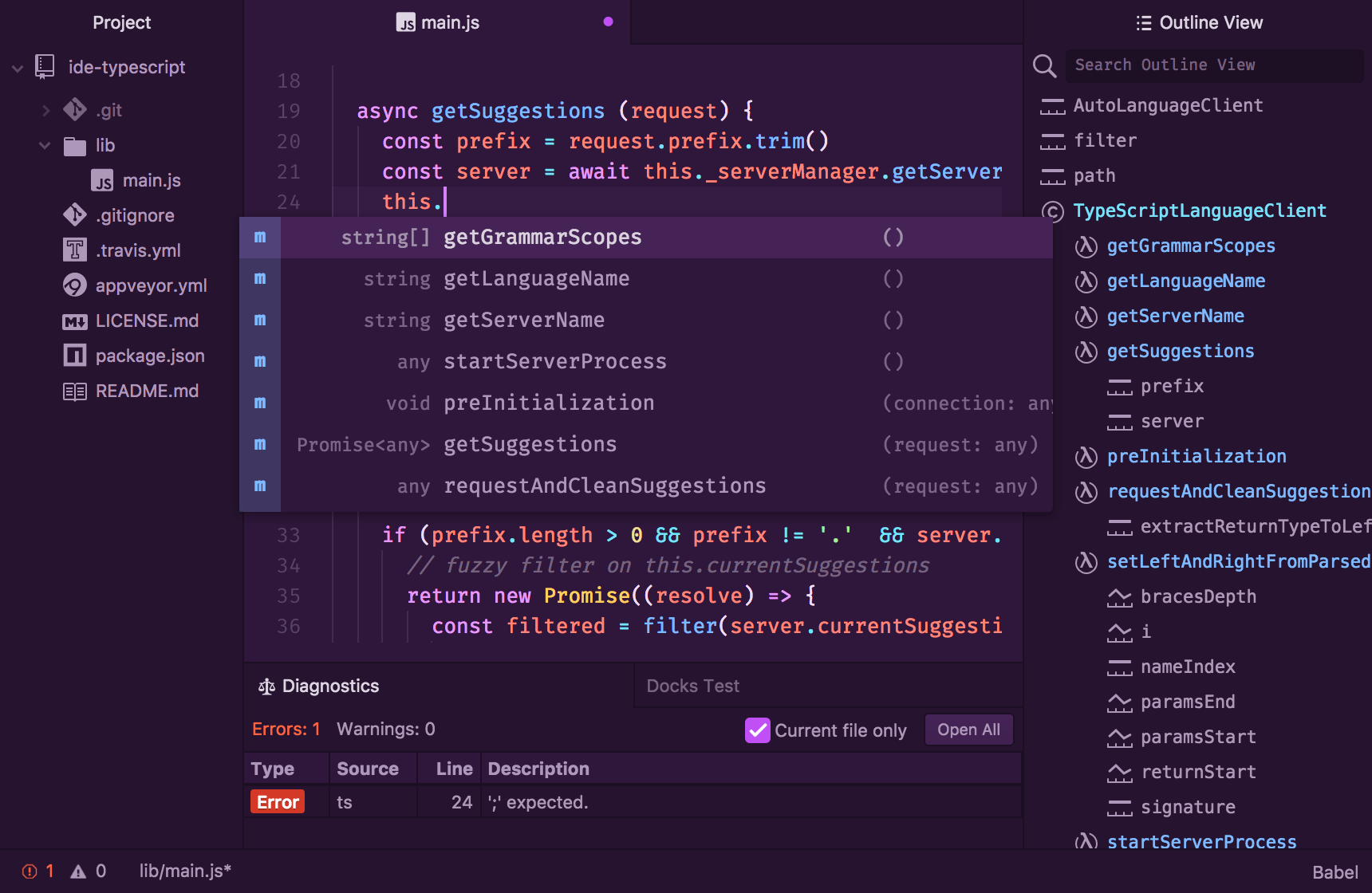
Atom is GitHub’s free and open-source code editor. It comes with default features such as smart code completion and an inbuilt package manager. Known as the “hackable” text editor, it’s highly customizable via plugins. Atom is based on the Electron framework and is well-suited for building cross-platform desktop applications using Chromium and Node.js.
Atom is celebrated for its simple UI and customizability. On the other hand, many users have experienced bugs, freezing, and crashing. This is a larger application that will likely slow you down if you have a weaker machine.
Pros:
- Highly customizable UI and functionality
- Features include GitHub integration, the APM integrated package manager, and multiple panes
- Open-source with a large and supportive community
Cons:
- Large application size exceeding 100MB
- Long load time, occasional crashes and freezes
- Longer set up if expanding functionality through plugins
Use case: You favor customizability, an intuitive interface, and a strong online community. Your device is not faint of heart and can handle a large application.
Price: Free.
Visual Studio Code (CE)#
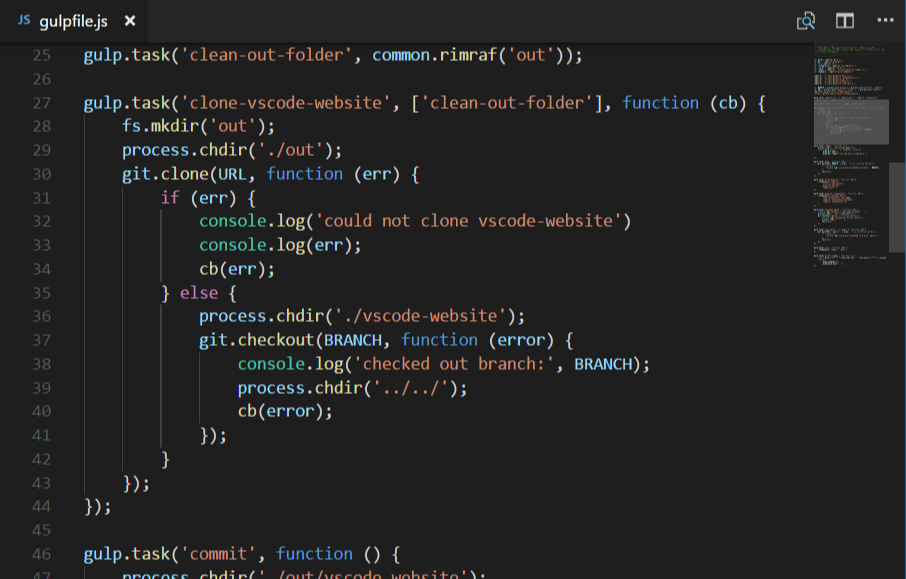
Visual Studio Code (VS Code) is a free code editor developed by Microsoft. As a code editor, it lacks inbuilt tooling and testing functionality. However, these functionalities can be installed with plugins and extensions. VS Code boasts a large community and strong technical support.
VS Code has an IDE counterpart, Visual Studio. Visual Studio is especially revered as an IDE for C, C++, and C Sharp. However, it is not free, and beginner JavaScript developers will likely find it unnecessarily complex. As long as you don’t mind installing plugins to expand VS Code’s functionalities, we think VS Code offers plenty enough for JavaScript development. To help you get started with VS Code, check out our recommended VS code extensions.
Pros:
- Support for JavaScript frameworks including React and Node.js
- Features include code folding, git integration, debugging, and IntelliSense (Microsoft’s implementation of code completion)
- Screen reader for accessibility
Cons:
- Steeper learning curve
- Long set up time to install extensions and plugins
Use case: You’re a developer in the corporate world. You want a versatile tool that can handle complex projects.
Price: Free.
Notepad++ (CE)#
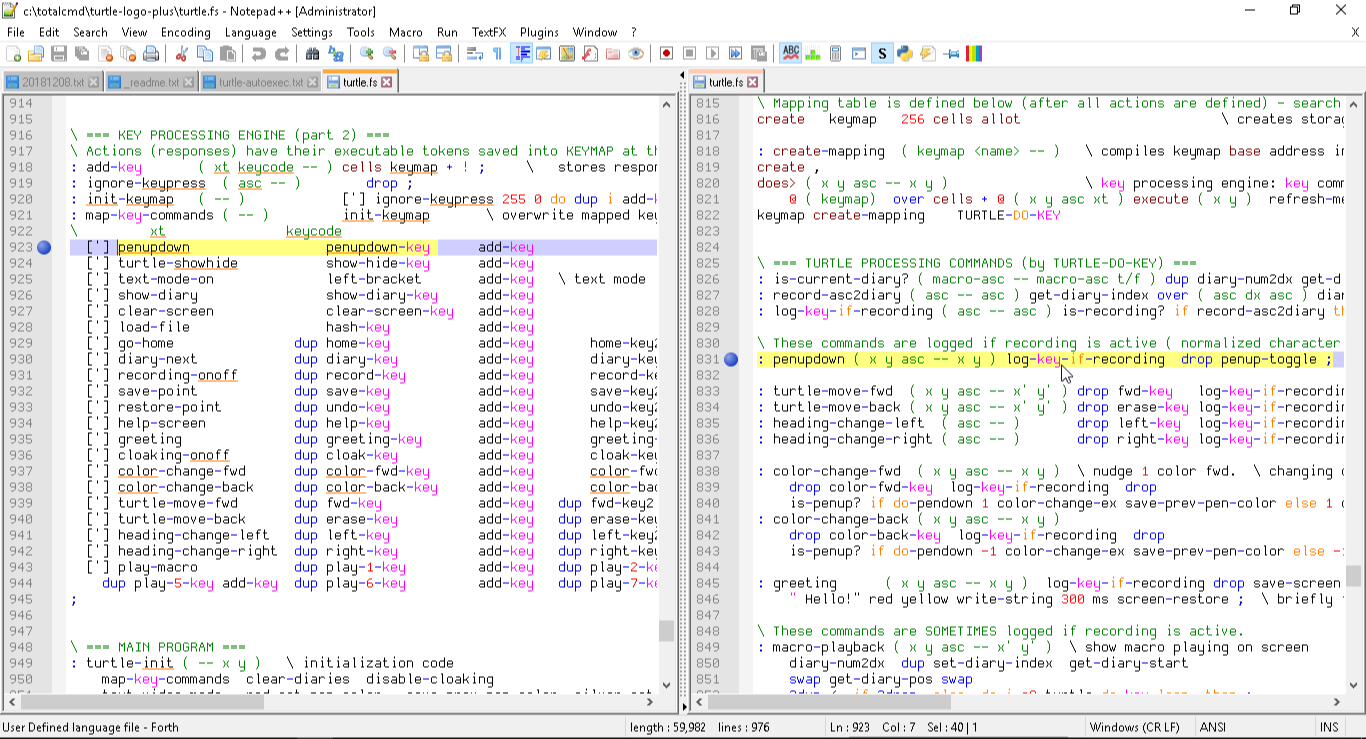
Notepad++ is a free source code editor for Windows users. It is an extremely lightweight application that is ideal for those with limited device specs. It comes out of the box with features such as code folding and syntax highlighting. It also has support for macros and plugins for additional customization.
Pros:
- Easy to install and use
- Most lightweight application
- Supports plugins and macros customization
Cons:
- Only available on Windows
- Lacks intelligent code completion and syntax checking
Use case: You are a Windows user who needs a lightweight application for your device. You want to practice basic projects without installing and customizing a complex IDE.
Price: Free.
Comparison chart: best JavaScript IDEs and code editors#
What to learn next#
You’ve found your favorite IDE or code editor. What now? The best way to master your JavaScript skills is to start writing code.
Check out Educative’s JavaScript in Practice: Getting Started course. This comprehensive course covers JavaScript fundamentals every web developer should know. In fact, you don’t need an IDE or code editor to get started. The course includes a cloud-based IDE so you can get hands-on coding practice anywhere.
Happy learning!