Running in Development Mode
Explore how to run a React app integrated with ASP.NET Core in development mode. Understand the role of Node, npm dependency restoration, and the Webpack development server. This lesson helps you optimize your development workflow by enabling fast feedback loops and smoother debugging through efficient tooling and project configuration.
We'll cover the following...
Steps to run an app in development mode
In the following steps, we’ll examine the ASP.NET Core project file to see what happens when the app runs in development mode:
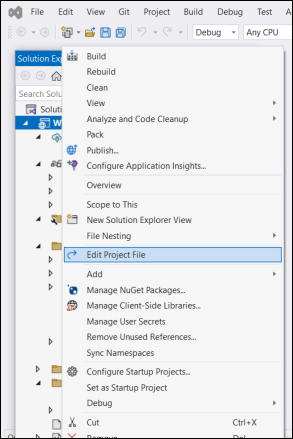
We can open the project file by right-clicking the web application project in “Solution Explorer” and selecting the “Edit Project File” option:

This is an XML file that contains information about the Visual Studio project.
Let’s look at the Target element, which has a
Nameattribute ofDebugEnsureNodeEnv:
This executes tasks when the ClientApp/node-modules folder doesn’t exist and the Visual Studio project ...