Many beginners who begin studying databases quickly look for practical ways to write and test SQL queries in a real interview and development environment. This often leads learners to explore how to start coding SQL in VSCode because Visual Studio Code provides a flexible editor that supports multiple programming languages and database tools.
VSCode has become a widely adopted development environment due to its lightweight design, extensive extension marketplace, and customizable interface. These features make it suitable not only for programming languages such as JavaScript or Python, but also for database development and SQL query writing.
Using VSCode for SQL development allows developers to write queries, connect directly to databases, and view query results without switching between multiple tools. With the correct setup, beginners can move from installing the editor to running their first SQL queries within a single environment.
In this beginner-friendly course on SQL, you will dive into the world of structured query language, gradually mastering its core concepts. Through hands-on projects, you will navigate the essentials of SQL without overwhelming emphasis on programming intricacies. Starting with fundamental keywords like SELECT, FROM, and WHERE, you will build a solid foundation for crafting SQL queries. As you progress, you will gradually encounter additional keywords that complement these basics, such as DISTINCT, ORDER BY, GROUP BY, and aggregate functions, which play a pivotal role in refining your SQL skills. Toward the end of the course, you will also gain insights into creating tables and effectively managing the information stored within these tables.
Why developers use VSCode for SQL development#
Visual Studio Code is popular among developers because it combines simplicity with powerful development tools. Although it is not a dedicated database management system, its extension ecosystem allows it to support many database workflows.
One important advantage of VSCode is syntax highlighting, which improves readability by displaying SQL keywords, table names, and operators in different colors. This feature helps developers identify errors and understand query structure more easily.
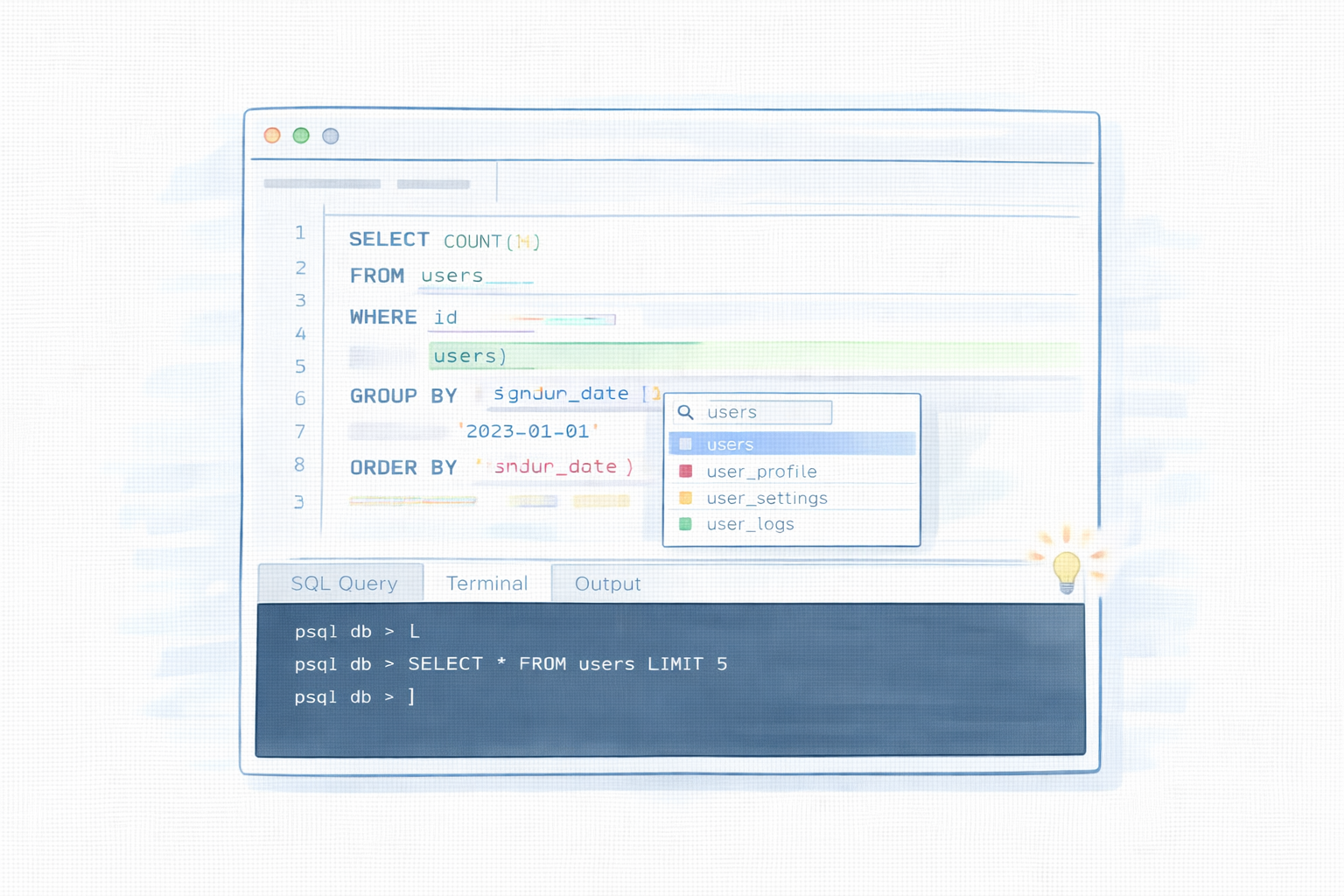
Another useful capability is query formatting and autocompletion, which assists developers while writing SQL statements. Some extensions provide suggestions for table names, columns, and keywords based on the connected database schema.
VSCode also provides an integrated terminal, which allows developers to run database commands, manage scripts, or execute command-line tools without leaving the editor. These features make the environment convenient for both beginners and experienced developers who want to work efficiently with SQL queries.
Tools required to begin coding SQL in VSCode#
Before writing SQL queries in VSCode, several components must be installed and configured.
Tool | Purpose |
Visual Studio Code | Code editor used to write SQL queries |
SQL extension | Enables database connections and query execution |
Database system | MySQL, PostgreSQL, SQLite, or SQL Server |
Database credentials | Connection details needed to access the database |
Visual Studio Code serves as the primary editor where SQL scripts are written and executed. SQL extensions provide the functionality required to connect the editor to a database and run queries. A database system such as MySQL, PostgreSQL, SQLite, or SQL Server is required because SQL queries must run against a database engine. Finally, database credentials allow the editor to establish a connection and interact with the database securely.
Understanding these components helps clarify how to start coding SQL in VSCode in a structured and reliable development environment.
The ability to work SQL is becoming an increasingly in-demand skill, both for software developers and people in less technical roles. If you’re interested in learning SQL and have no prior experience with it, then this course will be your light in a dark tunnel. You’ll start by covering the basics of SQL such as how to create a database, how to insert, query, and update data. You’ll also learn fundamental concepts that developers and data scientists use everyday such as multi-table operations, nested queries, and how to set up views. Throughout, you’ll get to execute SQL queries in your browser and see results in real-time - you won’t need to worry about set-up. At the end of this course, you’ll also get some hands-on practice with common SQL interview questions, so when the time comes, you’ll be ready and confident to answer any question that comes your way. Let’s get started!
Step-by-step: installing Visual Studio Code#
The first step in setting up the development environment involves installing Visual Studio Code on your computer.
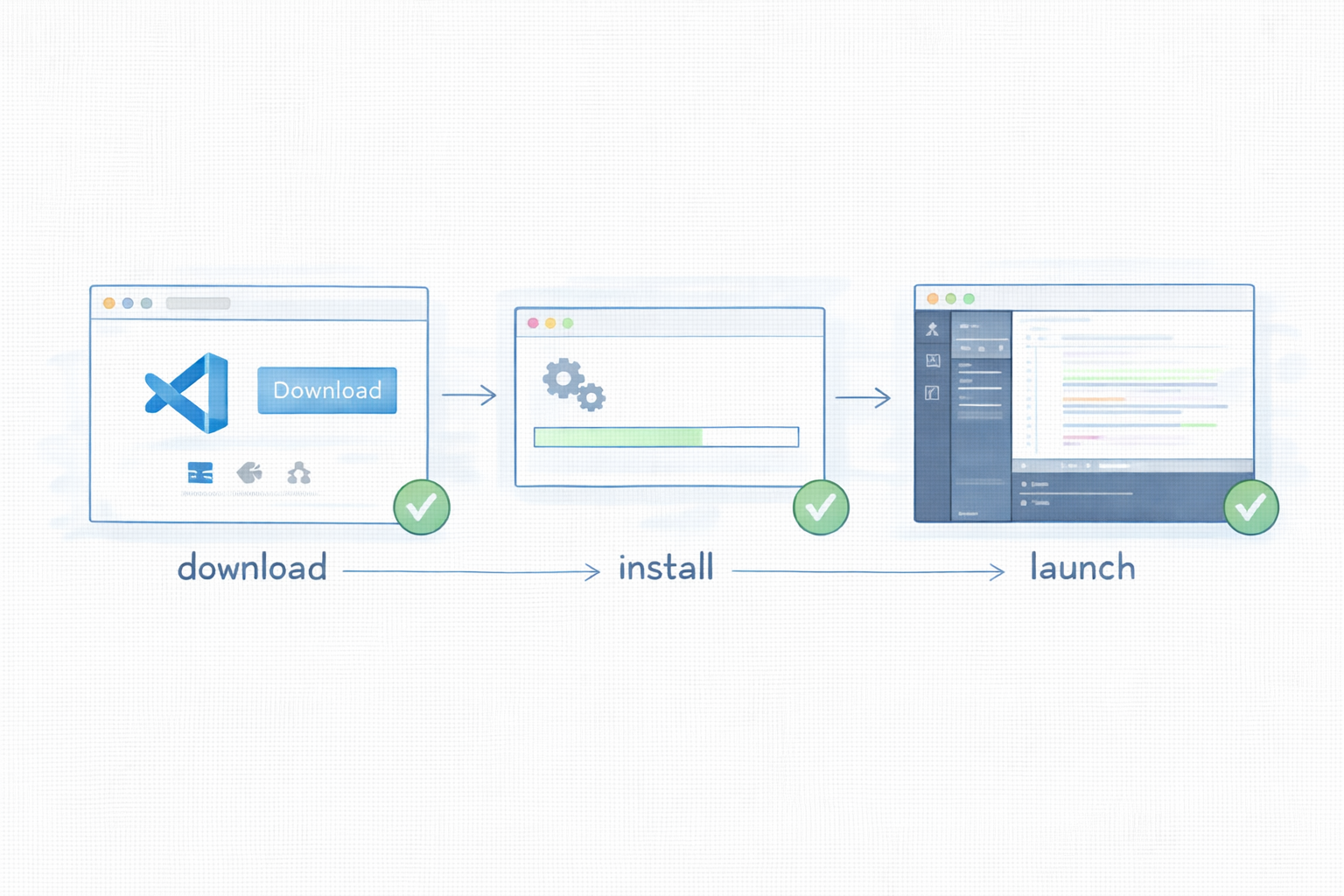
Downloading VSCode#
Visit the official Visual Studio Code website and download the installer for your operating system. The editor is available for Windows, macOS, and Linux.
Installing the editor#
After downloading the installer, run the setup program and follow the installation instructions. Most users can proceed with the default configuration settings, which include installing the editor and enabling system integration.
Launching the editor#
Once the installation is complete, open Visual Studio Code. The main interface includes a file explorer, editor window, extensions panel, and integrated terminal. These tools will be used throughout the SQL development workflow.
At this stage, the environment is ready for additional configuration that enables SQL support.
Installing SQL extensions in VSCode#
Extensions allow Visual Studio Code to support specialized development tasks, including database connectivity and SQL query execution.
Using the Extensions Marketplace#
Open the Extensions panel in VSCode by clicking the Extensions icon in the sidebar. The marketplace contains thousands of extensions that add functionality to the editor.
Recommended SQL extensions#
Some commonly used extensions for SQL development include:
SQLTools – Provides database connection support and query execution tools
Database client extensions – Enable connections to specific database systems such as MySQL or PostgreSQL
SQL syntax highlighting extensions – Improve readability when writing queries
After selecting an extension, click the Install button. Once installed, the extension integrates directly into the editor and adds database-related features.
Installing extensions is an essential step in learning how to start coding SQL in VSCode because these tools allow the editor to communicate with database systems.
Connecting VSCode to a database#
After installing SQL extensions, the next step involves connecting the editor to a database.
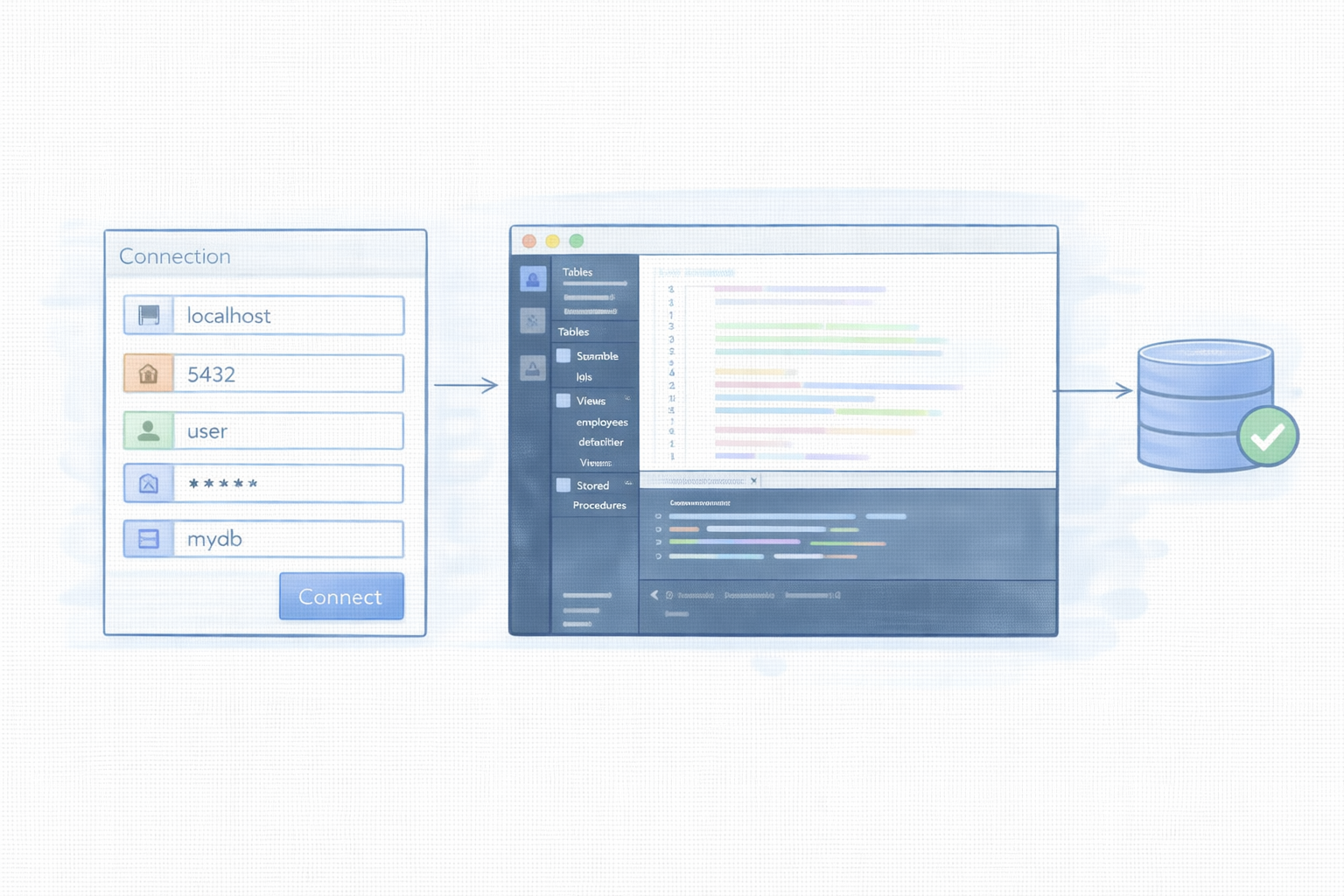
Most SQL extensions provide a connection panel where developers can create a new database connection. To establish a connection, several pieces of information are required:
Database host address
Database port number
Username and password
Database name
For example, a connection to a local PostgreSQL database may use localhost as the host and 5432 as the port. Once the credentials are entered and saved, the extension establishes a connection to the database server.
After a successful connection, the extension usually displays the database schema, including tables, views, and stored procedures. This view allows developers to explore the structure of the database directly within VSCode.
Writing your first SQL query#
Once the database connection is established, developers can begin writing SQL queries.
Create a new file with the .sql extension and enter the following example query:
SELECT name, emailFROM usersWHERE active = 1;
This SQL query retrieves the name and email columns from a table called users. The WHERE clause filters the results so that only records where the active column equals one are returned.
Most SQL extensions allow developers to execute queries by selecting the query text and clicking a Run Query command or pressing a keyboard shortcut. The results appear in a panel within the editor, displaying the data returned by the query. Running queries directly inside the editor is one of the main reasons developers learn how to start coding SQL in VSCode when working with databases.

Learn SQL basics with our beginner-friendly guide to understanding the language of data. You’ll start by learning to talk to a database: asking questions and getting meaningful answers using SQL. With AI-assisted guidance, you’ll explore the essentials—selecting columns, filtering rows, sorting results, and applying logic to uncover patterns in raw data. As your questions become more precise, you’ll explore grouping, aggregation, and subqueries to extract deeper insights. Then you’ll shift gears and learn how to create tables, insert and edit data, and design simple relational schemas. Finally, you’ll tackle real-world scenarios using joins, building multi-table queries, and designing interactive dashboards. You’ll complete hands-on challenges and projects like a student tracker and a game leaderboard. No prior experience with databases or programming is needed—this course is your friendly introduction to the language of data.
Organizing SQL files in VSCode#
As database projects grow, developers often organize their queries into structured .sql files. These files may contain schema definitions, migration scripts, or data queries.
Maintaining organized SQL files makes it easier to manage database changes and collaborate with other developers. Many teams store these files in version control systems such as Git so that database scripts evolve alongside application code.
Clear organization becomes increasingly important as projects expand and the number of queries grows.
Troubleshooting common setup issues#
Beginners sometimes encounter technical issues while configuring their SQL development environment. Understanding common problems helps developers resolve them quickly. One frequent issue involves database connection errors, which occur when connection credentials are incorrect or the database server is not running. Verifying host information, usernames, and passwords often resolves these problems.
Another issue involves missing extensions or drivers. Some SQL extensions require additional database drivers before they can communicate with a database system. Installing the required drivers usually resolves connection problems. Authentication failures may occur if database permissions are restricted. In these cases, checking database access privileges or creating a new user account may solve the issue.
Incorrect driver configuration can also prevent queries from executing properly. Ensuring that the correct database type is selected in the connection configuration helps avoid these errors.
Do I need a database installed to run SQL queries in VSCode?#
Yes, SQL queries must run against a database engine. While VSCode provides the editor and extensions for writing queries, a database system such as MySQL, PostgreSQL, SQLite, or SQL Server must be installed or accessible.
Which SQL extensions are best for beginners?#
SQLTools is widely recommended because it supports multiple database systems and provides features such as query execution, schema exploration, and result visualization. Its interface is relatively simple and suitable for beginners.
Can VSCode connect to cloud databases?#
Yes, many SQL extensions support connections to cloud databases hosted on platforms such as AWS, Azure, or Google Cloud. Developers can connect using the same credentials and connection details used for local databases.
Is VSCode suitable for professional database development?#
Visual Studio Code is widely used in professional environments because of its flexibility and extension ecosystem. While specialized database tools may offer additional features, VSCode provides sufficient capabilities for many SQL development workflows.
Final words#
Visual Studio Code provides a flexible environment for writing and executing SQL queries once the appropriate extensions and database connections are configured. By installing the editor, adding SQL extensions, connecting to a database, and writing queries, developers can build a complete SQL development workflow inside a single tool.
Learning how to start coding SQL in VSCode enables beginners to practice database queries, explore data structures, and develop practical SQL skills using a widely adopted development environment.