Creating a Geometry by Extruding a 2D Shape
Explore extruding 2D shapes into 3D forms using Three.js. Understand how to use THREE.ExtrudeGeometry and TubeGeometry to create intricate 3D objects. Learn about extrusion options, bevel properties, curves, and how to define smooth paths for advanced shapes.
Three.js provides a way in which we can extrude a 2D shape into a 3D shape. By extruding, we mean stretching out a 2D shape along its THREE.CircleGeometry, we get a shape that looks like a cylinder, and if we extrude THREE.PlaneGeometry, we get a cube-like shape. The most versatile way of extruding a shape is using THREE.ExtrudeGeometry.
The THREE.ExtrudeGeometry
With THREE.ExtrudeGeometry, we can create a 3D object from a 2D shape. The following screenshot taken from the example shows this geometry:

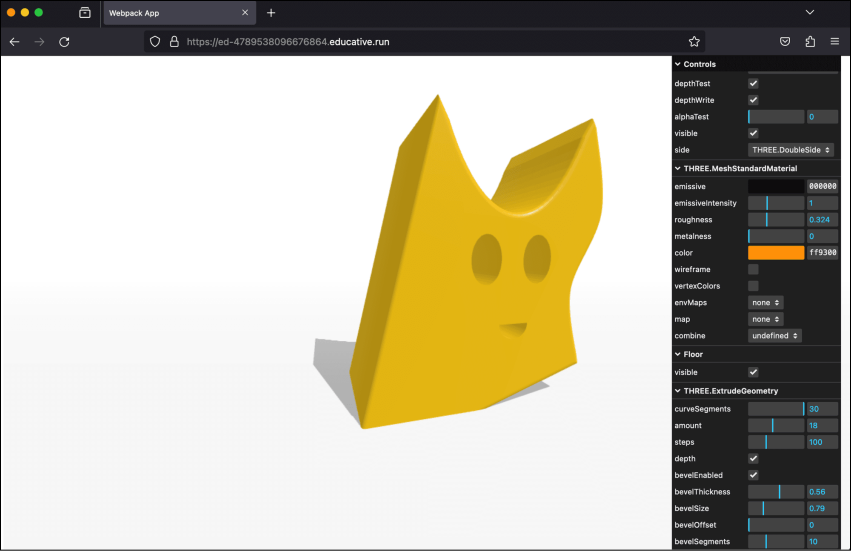
Example: ExtrudeGeometry
Let’s execute the example extrude-geometry.js in the playground below by clicking the “Run” button:
const path = require('path')
const HtmlWebpackPlugin = require('html-webpack-plugin')
// const CopyWebpackPlugin = require('copy-webpack-plugin')
const fs = require('fs').promises

// we should search through the directories in examples, and use
// the name from the files to generate the HtmlWebpackPlugin settings.
module.exports = async () => {

  return {
    module: {
      rules: [
        {
          test: /\.glsl$/i,
          use: 'raw-loader'
        }
      ]
    },
    mode: 'development',
    entry: {
      'chapter-6': './samples/chapters/chapter-6/extrude-geometry.js',
    },
    output: {
      path: path.resolve(__dirname, 'dist'),
      filename: 'bundle.js',
      publicPath: '/',
    },
    plugins: [
      new HtmlWebpackPlugin(),
    ],
    experiments: {
      asyncWebAssembly: true
    },
    devServer: {
       allowedHosts: 'all',
       host: '0.0.0.0',
       port: '3000',
       static: [
        {
          directory: path.join(__dirname, 'assets'),
          publicPath: '/assets'
        },
        {
          directory: path.join(__dirname, 'dist')
        }
      ]
    },
  mode: 'development',
  }
}
Note: We can change the properties of the geometries from the right control panel in the output screen.
In this example, we took a 2D shape and used THREE.ExtrudeGeometry to convert it to 3D. We can see in the preceding screenshot that the shape is extruded along the