Grouping the Geometries
Explore how to group multiple meshes using THREE.Group and create instanced meshes for better performance. Understand the process of merging geometries with BufferGeometryUtils to render large numbers of objects efficiently. This lesson helps you control transformations of grouped objects and optimize 3D scenes in Three.js.
We’ll look at two basic features of Three.js:
Grouping objects together
Merging multiple geometries into a single geometry
We’ll start with grouping objects.
Grouping objects together
We already saw how we can group objects when working with multiple materials. When we create a mesh from a geometry using multiple materials, Three.js creates a group. Multiple copies of our geometry are added to this group, each with its own specific material. This group is returned, so it looks like a mesh that uses multiple materials. In truth, however, it is a group that contains a number of meshes.
Creating groups is very easy. Every mesh we create can contain child elements, which can be added using the add function. The effect of adding a child object to a group is that we can move, scale, rotate, and translate the parent object, and all the child objects will also be affected. When using a group, we can still refer to, modify, and position the individual geometries. The only thing we need to remember is that all positions, rotations, and translations are done relative to the parent object.
Let’s look at an example in the following screenshot:

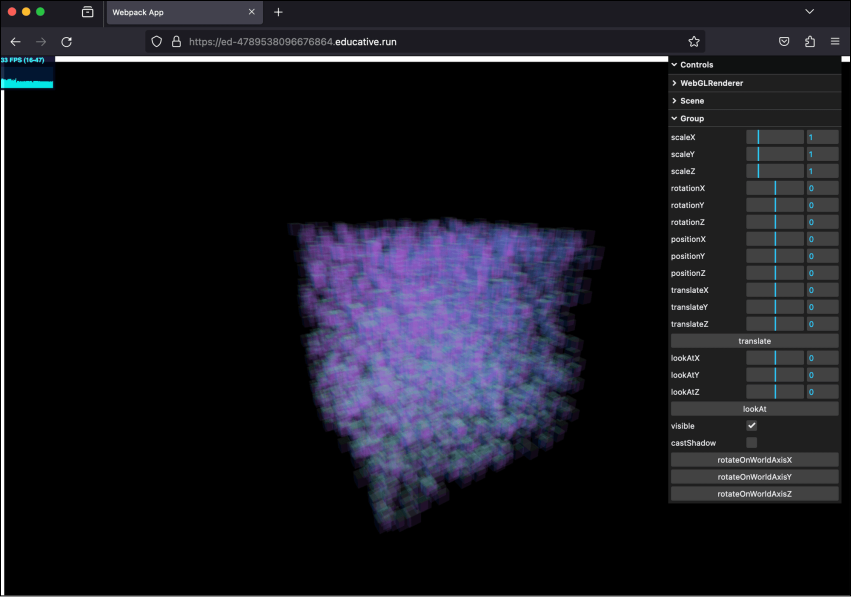
Example: Grouping objects
Let’s execute the grouping.js example in the playground below by clicking the “Run” button. Once the application is running, please click the provided link to view the output in a new window.
const path = require('path')
const HtmlWebpackPlugin = require('html-webpack-plugin')
// const CopyWebpackPlugin = require('copy-webpack-plugin')
const fs = require('fs').promises

// we should search through the directories in examples, and use
// the name from the files to generate the HtmlWebpackPlugin settings.
module.exports = async () => {

  return {
    module: {
      rules: [
        {
          test: /\.glsl$/i,
          use: 'raw-loader'
        }
      ]
    },
    mode: 'development',
    entry: {
      'chapter-8': './samples/chapters/chapter-8/grouping.js',
    },
    output: {
      path: path.resolve(__dirname, 'dist'),
      filename: 'bundle.js',
      publicPath: '/',
    },
    plugins: [
      new HtmlWebpackPlugin(),
    ],
    experiments: {
      asyncWebAssembly: true
    },
    devServer: {
       allowedHosts: 'all',
       host: '0.0.0.0',
       port: '3000',
       static: [
        {
          directory: path.join(__dirname, 'assets'),
          publicPath: '/assets'
        },
        {
          directory: path.join(__dirname, 'dist')
        }
      ]
    },
  mode: 'development',
  }
}
Note: We can change the properties of the geometries from the right control panel in the output screen. ...