Switching Trace Level
Explore how to use trace switches to control logging output levels in C# applications. Learn to add NuGet packages, configure settings with appsettings.json, and write trace information conditionally. Understand how to include source code details in logs for better debugging and diagnostics.
The Trace.WriteLine calls are left in our code even after release. So, having fine control over when they are output would be great. This is something we can do with a trace switch. The value of a trace switch can be set using a number or a word. For example, the number 3 can be replaced with the word Info, as shown in the following table:
Number | Word | Description |
0 |
| This will output nothing. |
1 |
| This will output only errors. |
2 |
| This will output errors and warnings. |
3 |
| This will output errors, warnings, and information. |
4 |
| This will output all levels |
Let’s explore using trace switches. First, we will add some NuGet packages to our project to enable loading configuration settings from a JSON appsettings file.
Adding packages to a project in Visual Studio 2022
Visual Studio has a graphical user interface for adding packages:
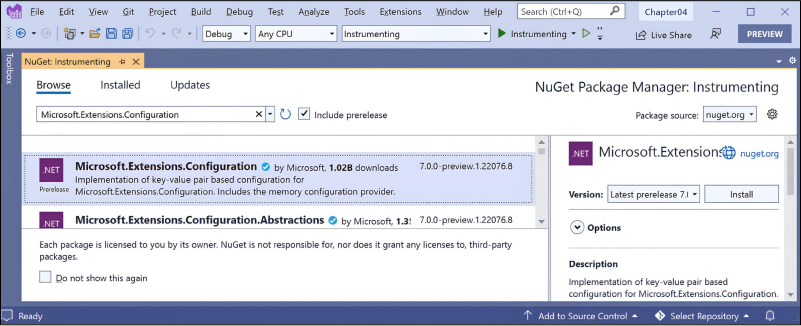
Step 1: In Solution Explorer, right-click the Instrumenting project and select the “Manage NuGet Packages” option.
Step 2: Select the “Browse” tab.
Step 3: In the search box, enter Microsoft.Extensions.Configuration.
Step 4: Select each of these NuGet packages and click the “Install” button, as shown in the figure:
Microsoft.Extensions.ConfigurationMicrosoft.Extensions.Configuration.BinderMicrosoft.Extensions.Configuration.FileExtensionsMicrosoft.Extensions.Configuration.Json

Adding packages to a project in Visual Studio Code
Visual Studio Code does not have a mechanism to add NuGet packages to a project, so we will use the command-line tool: ... ...